Capacity forecast, reservations and company capacity
Will the teams be able to take on a project that has not started yet? Three tools answer that at three levels: the capacity forecast tests one project, reservations hold the hours in the teams, and company capacity shows where the whole organisation will run short and what closes the gap.
The screenshots show the demo organisation "Northwind Services", with made-up data.
Overview
| Tool | Question | Who uses it | Where |
|---|---|---|---|
| Capacity forecast | "If we start this project in week 44, do the teams have the hours?" | Project Lead (own forecasts), Project Supervisor and Project Admin (all) | Projects → Capacity Forecast |
| Reservations | "Which hours are already held for which project, and in which team?" | Team leads and their deputies, department leads (totals only), the Reservations role | Projects → Reservations |
| Company capacity | "Over the next 12 months, where is the organisation short, and what do we hire, buy or postpone?" | The Capacity Planner role | Projects → Company Capacity |
They build on each other. A forecast that you commit becomes reservations. Reservations and forecasts that are still planned are the demand that company capacity compares with the teams' free hours.
1. How free capacity is counted
All three tools use one calculation, per team and calendar week:
- Capacity: for every member the contracted hours per week, times the member's share in the team (where the team uses dedication), times the planning reserve of the member's home team (the slack setting of the team).
- minus leave (the working days a member is absent, as a share of the week),
- minus work already booked: tasks, base load, meetings, scheduled and recurring work that has not been created yet, and existing reservations.
What is left is the free capacity of the week. Because the planning reserve is already inside the capacity, you never have to remember it when you enter demand.
2. Capacity forecast
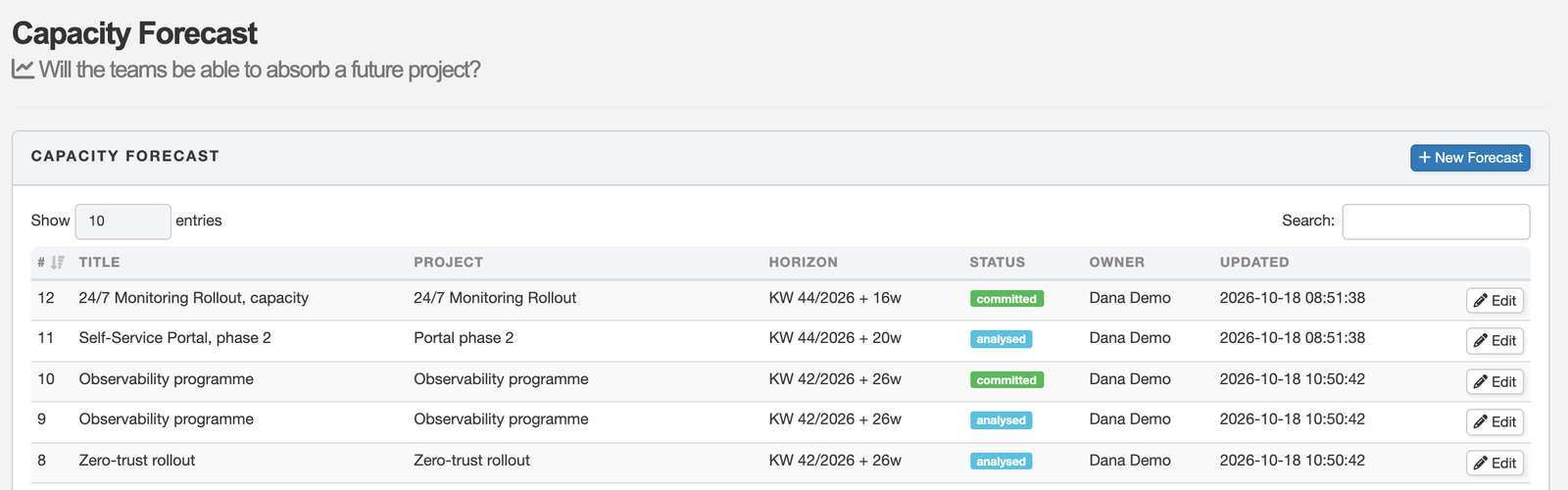
Open Projects → Capacity Forecast. The list shows your forecasts (Project Supervisor and Project Admin see everybody's) with status, horizon, owner and last change. Click New Forecast to start one.
Using the editor
Open a forecast with Edit (or New Forecast). The page has two parts: the forecast form on top and the Demand editor below it. The numbers in the picture are explained below.
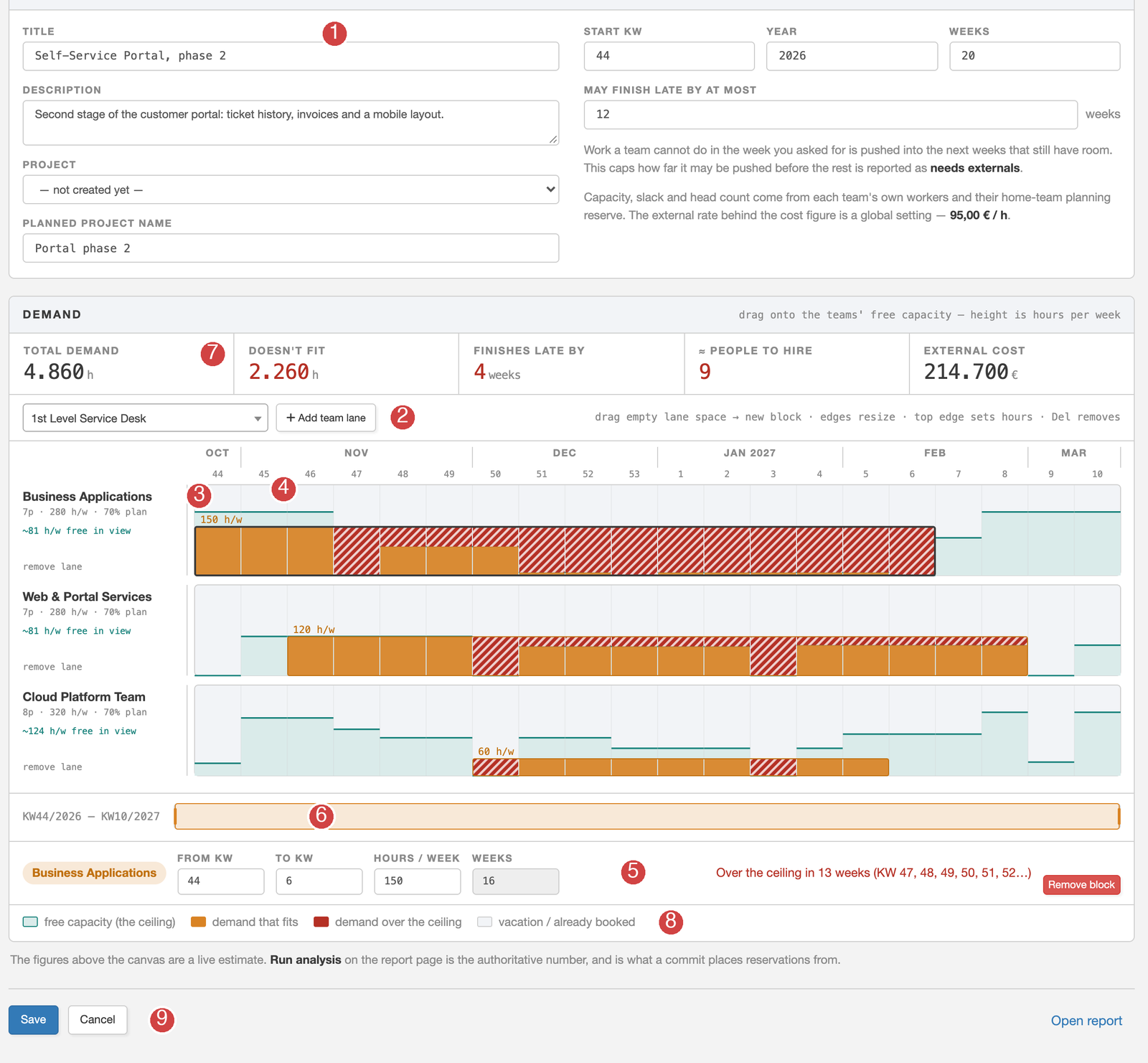
- The forecast form. Give the forecast a title and a description. Choose the project it is for, or leave "not created yet" and type its planned name. Then set the start week and year, the number of weeks to look at, and how many weeks the project may finish late at most; that last number limits how far work that does not fit is pushed back before the rest is reported as needing externals. If you change the start or the number of weeks, the capacity is read again and your blocks stay where their week numbers are; blocks that fall outside the new range are dropped.
- Add a team lane. Pick a team in the list and press Add team lane. Add the teams the project needs; a team that is already shown is not offered again.
- The lane label tells you what the team has: the number of people, the contracted hours per week, the planning reserve, and the average free hours per week in the weeks you see. remove lane takes the lane and its blocks away.
- Draw the demand. The teal line and area is the team's free capacity in each week, the ceiling. Drag across empty lane space to ask for hours: a new block starts at half of the free hours of its first week, and you stretch it over the weeks the work needs. Then adjust it:
- drag the block to move it to other weeks,
- drag its left or right edge to change start or end,
- drag its top edge up or down to change the hours per week (in steps of 2),
- click a block to select it (dark outline), and press Delete to remove it.
- The block's numbers. When a block is selected, the strip below the lanes lets you type exact values: From KW, To KW and Hours / week. It also says whether the block fits in every week or in how many weeks it is over the ceiling, and has Remove block.
- The week window. Under the lanes, the bar shows which weeks you see. Drag the bar, or its ends, to move or narrow the window when the horizon is long.
- The live figures above the lanes (total demand, what does not fit, how late the project finishes, how many people to hire, the external cost) change as you draw. They are a quick estimate.
- The legend explains the colours: the ceiling, demand that fits, demand over the ceiling, and vacation or work that is already booked (the grey part of a week).
- Save stores the forecast, with its blocks. Cancel leaves without saving. On a forecast that already exists, Open report takes you to its report, where Run analysis gives the numbers a commit works from.
A good way to work: start with the biggest team, draw its blocks, and watch the red hatching. Shorten the demand, spread it over more weeks or lower the hours until it fits, or leave it red on purpose to see what it would cost to place it anyway (externals, or a later finish).
Read the report
Run analysis works out, week by week and team by team, what the demand needs against what is free, and stores a snapshot as the report.
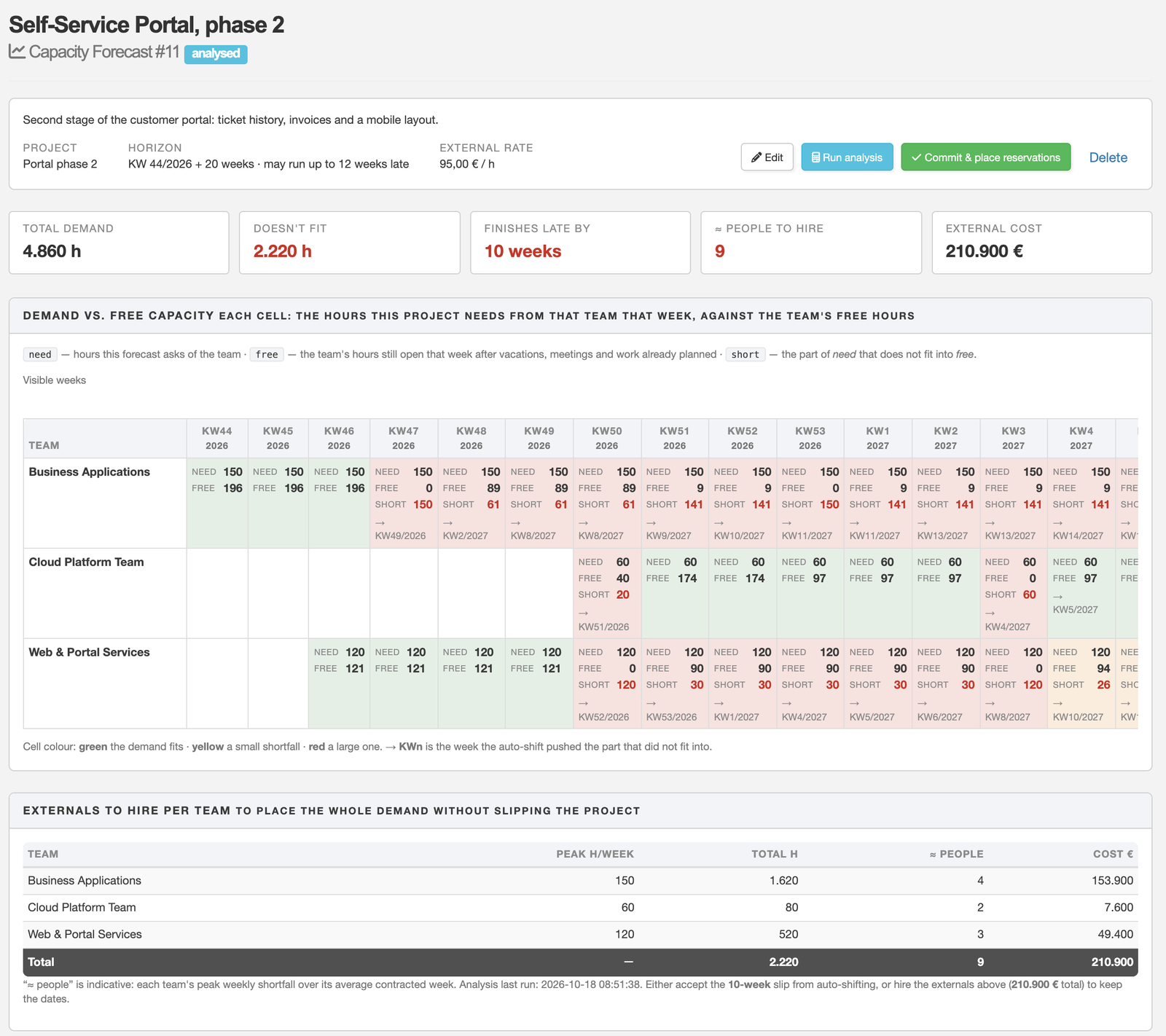
- Total demand and Doesn't fit: all hours asked for, and the part that does not fit into the teams' free hours.
- Finishes late by: how many weeks the project slips if the work that does not fit is pushed into the next weeks that still have room ("auto-shift"), up to the limit you set.
- People to hire and External cost: what it takes to place all the demand without slipping, priced with the external hourly rate (a global setting). "People" is indicative: a team's peak weekly shortfall divided by its average contracted week.
- In the grid every cell shows need (what the forecast asks of the team that week), free (what is open after leave, meetings and planned work) and short (the part that does not fit). Green: it fits. Yellow: a small shortfall. Red: a large one. → KW n is the week the auto-shift moved the overflow to.
The analysis is a calculation, not a plan. It does not move any task and holds no hours until you commit.
3. Commit, change, cancel
Commit & place reservations turns the demand blocks into reservations: one team-level reservation per block, tagged with the forecast. From then on they show in every team's load view, so the teams plan around them. The report is frozen as it was before the reservations existed. Committing is for the forecast's owner, Project Supervisor and Project Admin. The leads of every team that this commit pushes over its capacity get a message.
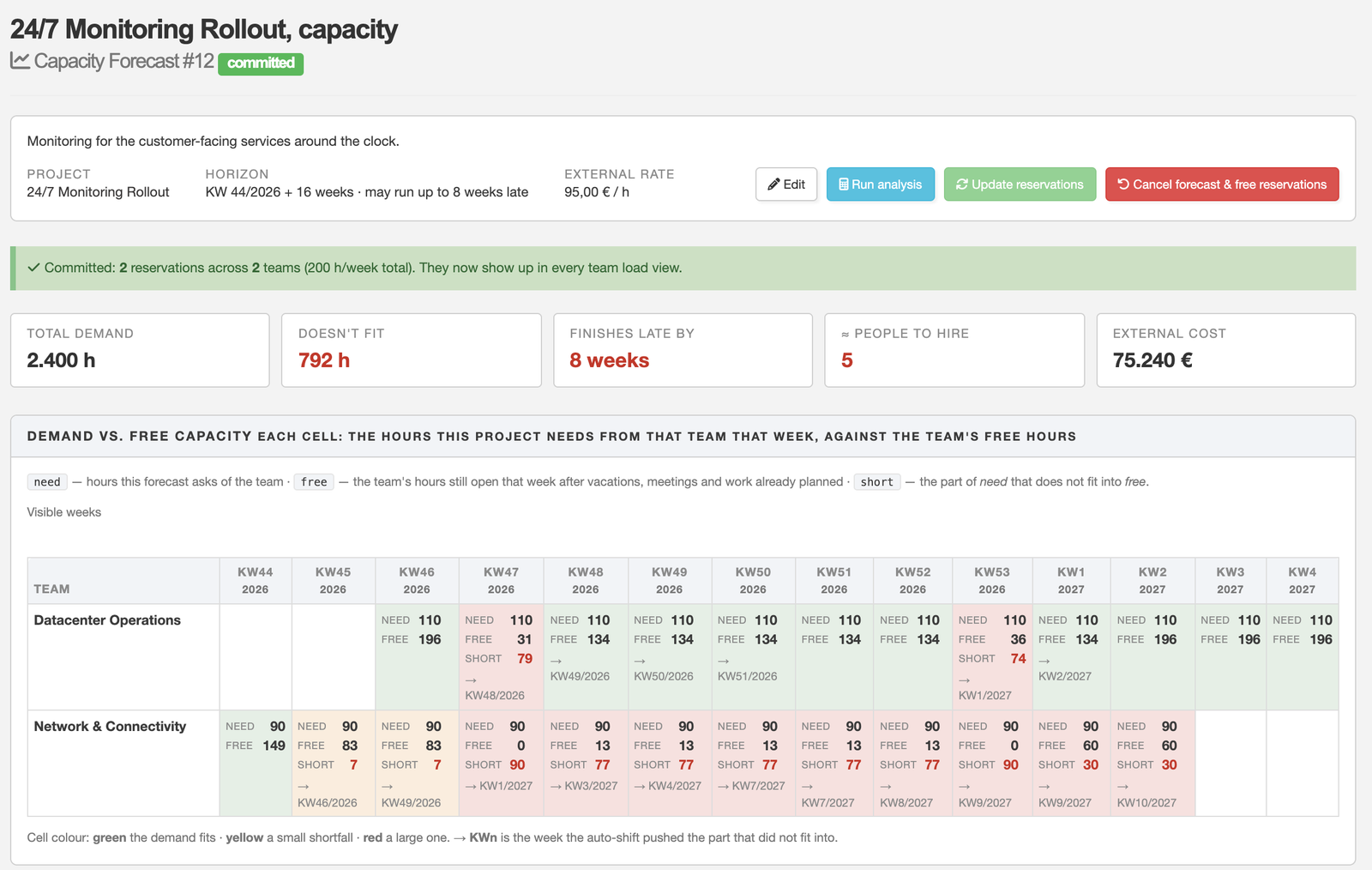
| Status | Meaning | What you can do |
|---|---|---|
| draft | Blocks entered, not analysed yet. | Edit, run the analysis, delete. |
| analysed | A report exists. Still only planned: it counts as demand in company capacity, but holds no hours in the teams. | Edit, run the analysis again, commit, delete. |
| committed | Reservations hold the hours in the teams. | Edit, update the reservations, cancel. |
| cancelled | Archive record: the reservations are freed and the report stays as it was. | Read only. |
Changing a committed forecast
Edit the blocks as before. Saving stores your changes only: the reservations do not move yet, and the report says so. When the plan is ready, press Update reservations; the teams see the new hours from then on. The button is greyed out while nothing is pending.
Cancelling
Cancel forecast & free reservations removes the reservations and frees the capacity again. The same happens automatically when the project a forecast is linked to is withdrawn. A draft or analysed forecast that you do not need can be deleted.
4. Reservations
A reservation holds hours per week for a project in a team, for a range of weeks. It is a space held before the work is planned in detail. Reservations come from two places: committed forecasts and reservations made by hand.
Open Projects → Reservations. Who sees what:
- a team lead or deputy sees the reservations of their teams, down to the individual people,
- a department lead or deputy sees the totals of the teams of the department, without people,
- the Reservations role gives the reservations of the person's own teams,
- a plain team member sees neither the page nor the menu entry.
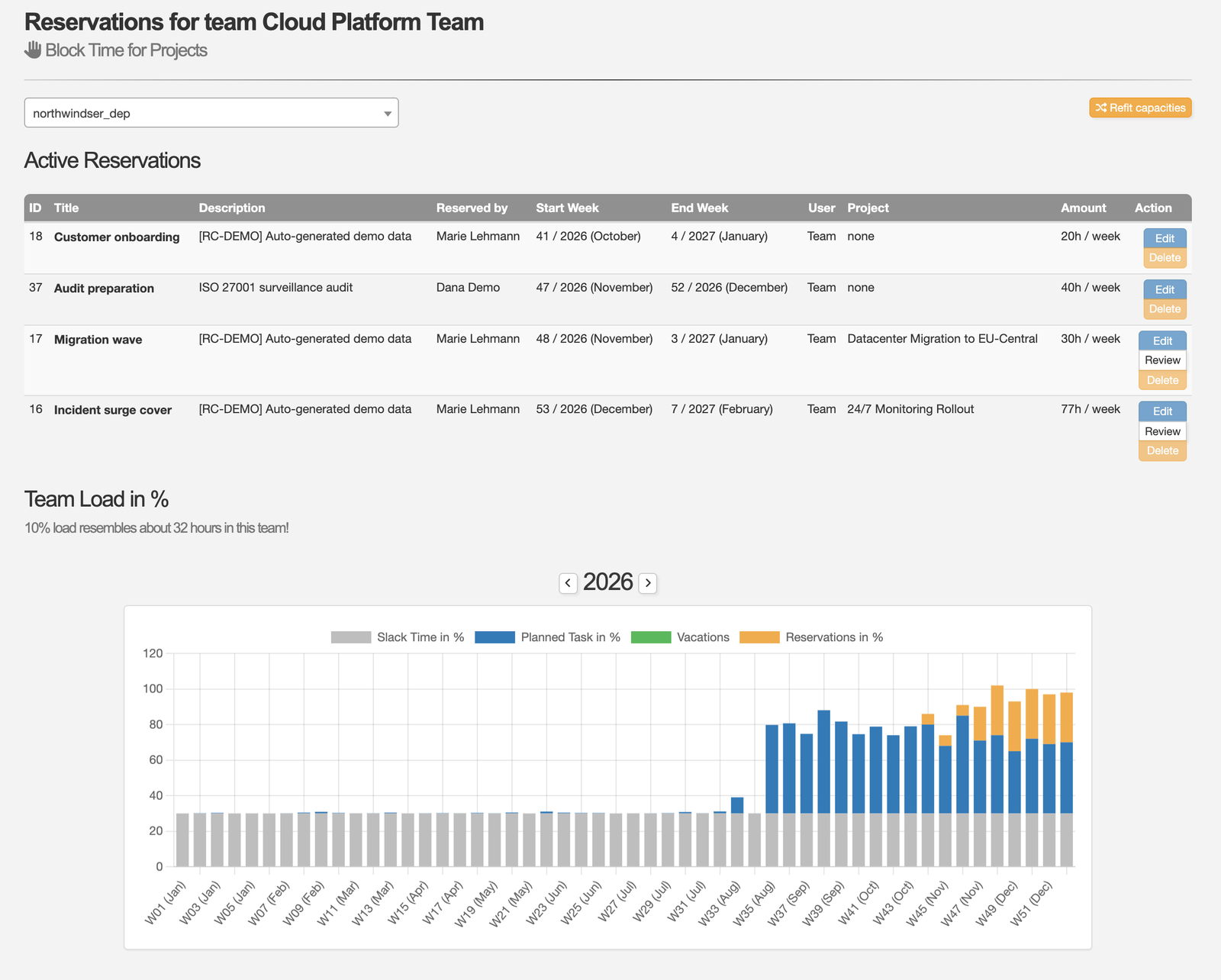
The table lists every active reservation with its title, who reserved it, the weeks, the project and the hours per week. The chart below it shows the team's load in percent week by week: slack, planned tasks, leave and reservations. The orange part is what reservations hold. Below that you see the same for each member.
Make, change and delete a reservation
- Add Reservation asks for a title, a description, the hours per week, start and end, the project and, if you like, a single person. Without a person the reservation is for the team as a whole.
- Edit changes a reservation, Delete removes it and frees the hours. Whoever sees a team's reservations with people (team leads, their deputies and the Reservations role) may write; a department lead only reads.
- Add Vacation files time off for one member of the team.
Reservations and the real tasks
A reservation is an envelope. When the project is planned and its tasks fall into the same weeks, the reservation and the tasks of the same project in the same team are not added up. The larger of the two counts, so a reservation of 40 hours and 40 hours of tasks read as 40, not 80.
Refit capacities
If a team has more reservations than weeks, the lead presses Refit capacities. The reservations are packed again by project priority: projects with a higher priority keep their weeks, lower ones are pushed to the next weeks that have room. Reservations without a project do not move, and neither do reservations that are already running. The leads of the affected projects are told, and a forecast whose reservations moved shows a banner on its report; run the analysis again to see the current picture.
5. Company capacity
The Capacity Planner role (assigned like any other role, under Admin → Organisation) opens Projects → Company Capacity. It answers, for the next 12 months or a calendar year: is there enough capacity for the work that is planned, and if not, where, how much, and what closes the gap?
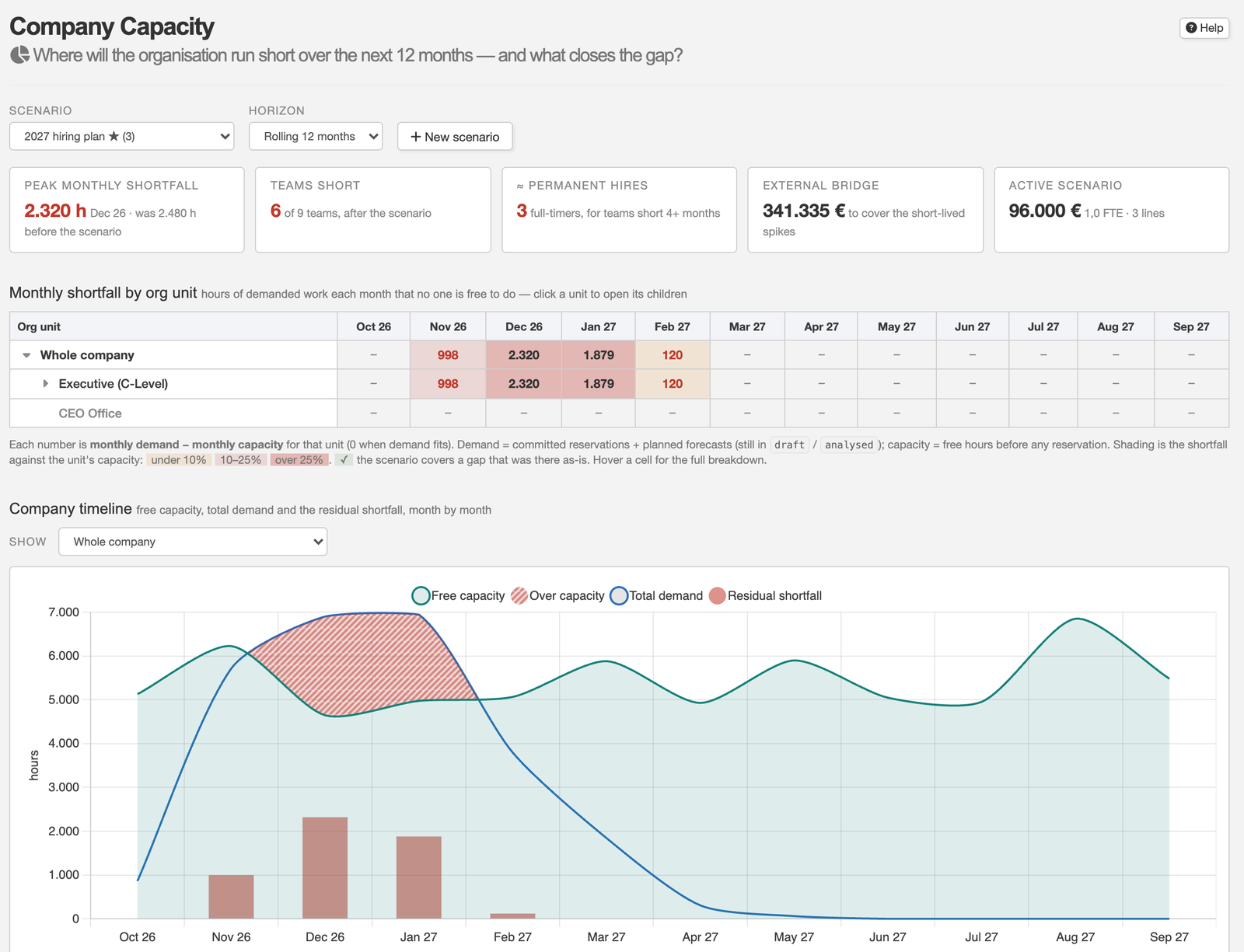
- Demand is committed reservations plus forecasts that are still planned (draft or analysed). Cancelled forecasts do not count. Capacity is a team's free hours before any reservation.
- The figures at the top: the worst month, the number of teams that are short somewhere, the permanent hires and the external bridge that the recommendations add up to, and the cost of the active scenario.
- The heatmap shows the shortfall per month for every org unit: monthly demand minus monthly capacity, zero when the work fits. The numbers add up the org chart, so you can read the whole company, an area or a department, and open it down to the teams with a click on the triangle. The shading shows the shortfall against the unit's capacity: under 10 %, 10 to 25 %, over 25 %. A tick means a scenario covers a gap that was there without it. Hover a cell for the breakdown by team and project.
- The timeline shows free capacity and total demand as lines and the residual shortfall as bars; months in which demand rises above capacity are hatched. It shows whether a gap is a one-month spike or a lasting trend.
6. Planning scenarios
A scenario is a named what-if plan, for example "2027 hiring plan". It never touches real reservations; it only re-runs the numbers on this page. Pick one in the Scenario box or create a new one; the star marks your default. A scenario is a list of lines:
| Line | Effect |
|---|---|
| New hire | Adds FTE times the team's average contracted week of capacity, from its start month on. |
| External | Adds its hours per week over the window. The cost per month feeds the scenario cost. |
| Defer demand | Removes its hours per week of demand over the window: a project pushed out or reduced in scope. |
| Other | A free-text measure; give it hours per week and/or a monthly cost if it has them. |
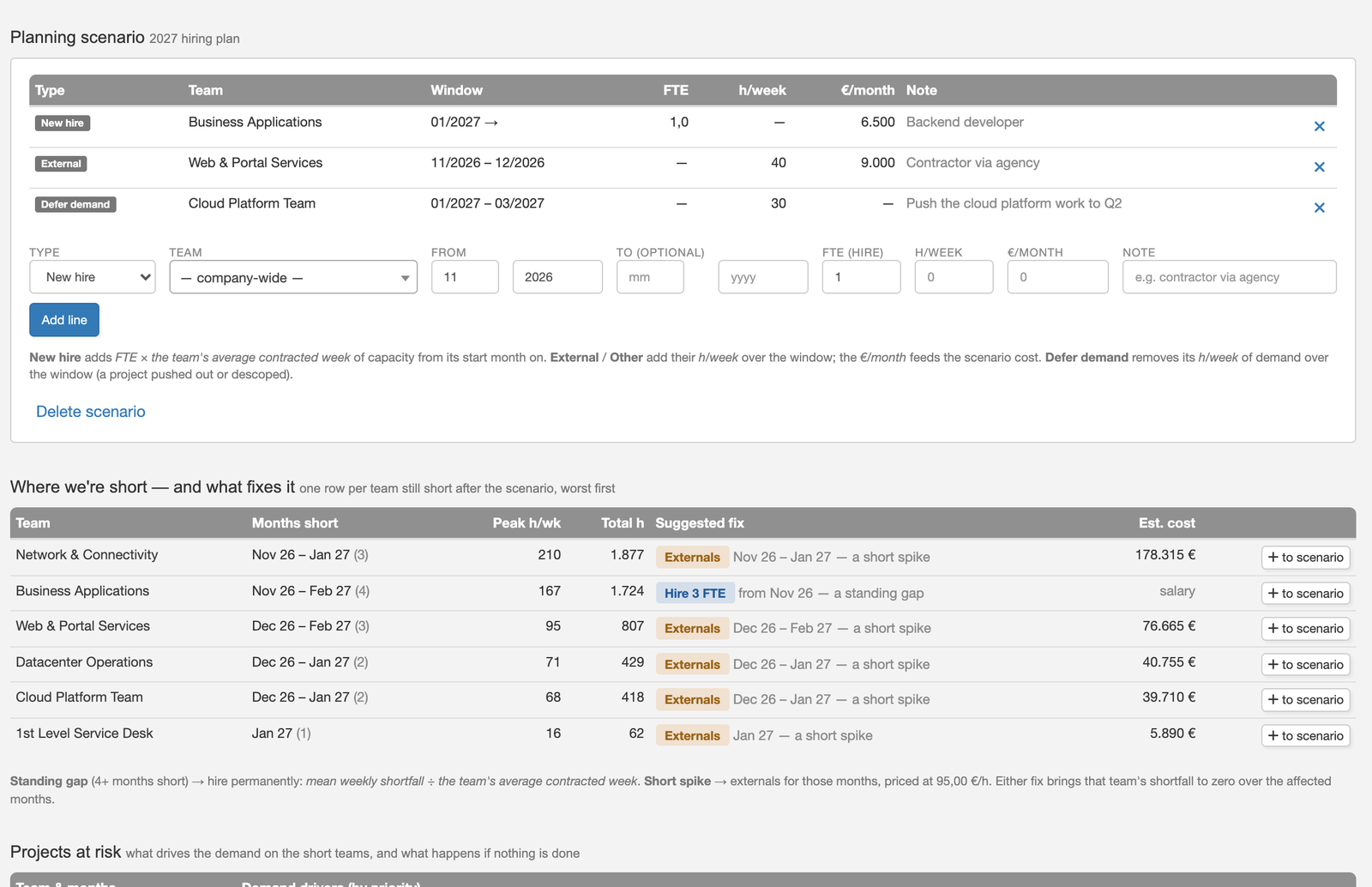
The table Where we are short has one row per team that is still short after the scenario, worst first. A gap that lasts four months or more is a standing shortage and the suggestion is to hire: the mean weekly shortfall divided by the team's average contracted week. A short spike gets externals for those months, priced at the external rate. Either fix brings the team's shortfall to zero. + to scenario puts the suggestion into the active scenario as a line, so you see its effect on the heatmap and the cost at once.
Projects at risk lists, for each short team, the projects whose demand lands in its short months, ranked by project priority, and what happens if nothing is done: the top-priority work keeps its weeks, the lower ones slip, and the page says by roughly how many weeks.
Rules and limits
- Roles. Forecast: Project Lead, Project Supervisor, Project Admin. A Project Lead sees and edits their own forecasts; Supervisor and Admin everybody's. Reservations: team leads and deputies and the Reservations role (write, own teams), department leads and deputies (read, totals). Company capacity: the Capacity Planner role only. Every page is also checked on the server, not only hidden in the menu.
- An analysis is a calculation and changes nothing. Only commit creates reservations, and only cancel (or a withdrawn project) frees them.
- Scenarios are what-ifs and never change reservations, forecasts or teams.
- The external hourly rate is one global setting for the whole instance.
- The head-count figures ("people to hire") are indicative and based on the team's average contracted week.
- A cancelled forecast is read only. Its report stays as it was analysed.