Resourcecloud — First Steps
Your instance is installed and the setup wizard is done. This guide walks the rc_admin — the administrator account created in the wizard — through the handful of things worth doing before the rest of the company logs in: connect real file storage, decide on AI features, build the org chart, and get comfortable with the day-to-day screens.
Overview
Plan for about 30–45 minutes, most of it one-time setup. Do the steps in order — storage before anyone uploads a file, the org structure before you invite people, since new users are assigned to a team as they are created. Right after the storage, download the audit key (step 2).
/basic_setup still greets you instead of a login
page, finish that first.1 · Log in and get your bearings
Sign in with the login name the wizard derived for your account (first letter of the first name plus the family name,
lower case — Anna Schmidt → aschmidt) and the password you chose. The login field is labelled
“Email” but takes the login name, not an address.
You land on My Tasks with one welcome task already assigned to you in your default team.
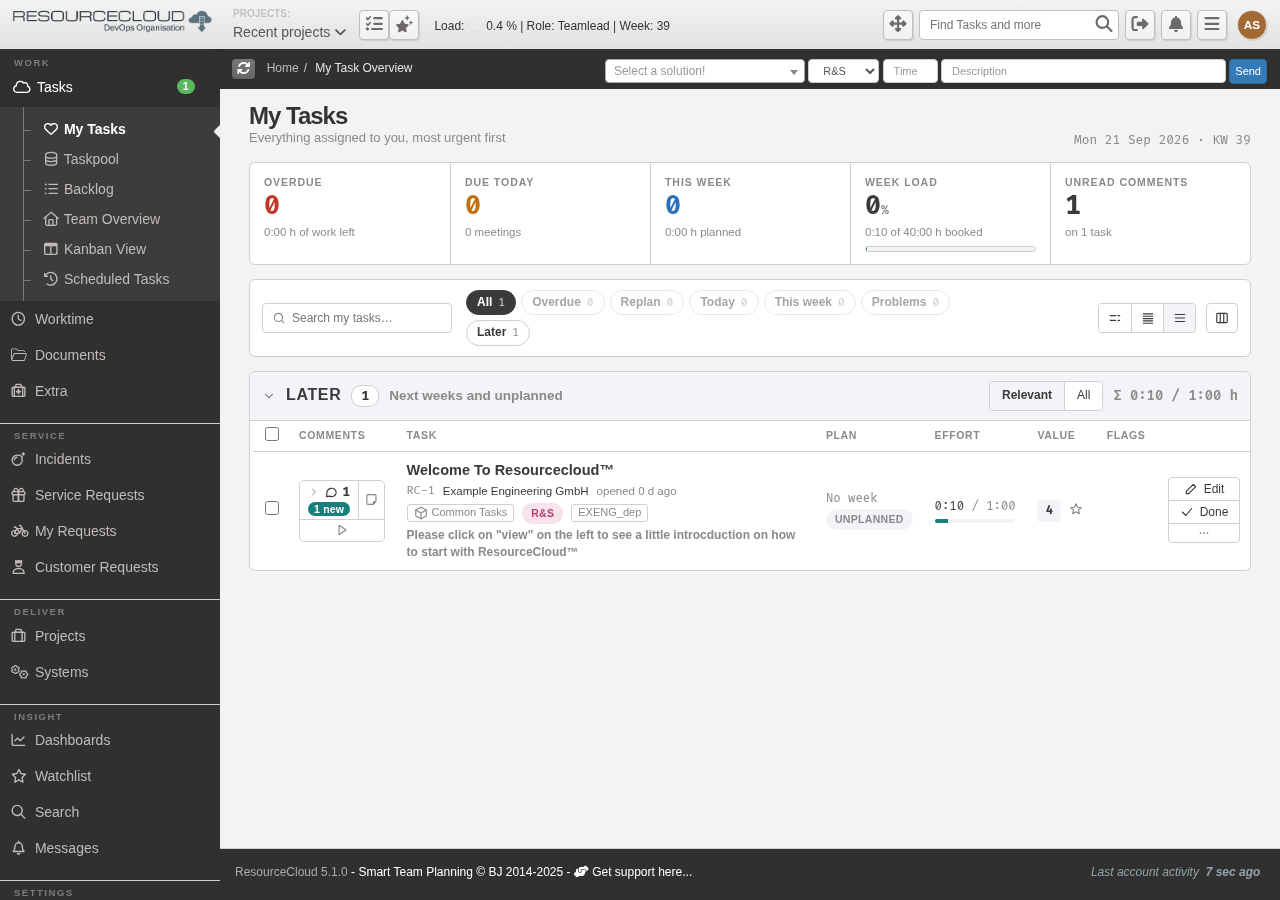
The navigation is organised top to bottom roughly the way you will use it day to day:
| Group | What's there |
|---|---|
| My Tasks / Pool / Backlog | Your own work, unassigned tickets, and the sprint backlog. |
| Projects / Kanban / Sprints | Project overviews, Kanban boards, sprint planning and time tracking. |
| Reports | Load and performance reporting (if enabled — see Roles). |
| Admin | Org Management and Global Settings — everything in this guide lives here. Only visible to administrators. |
Everything in the steps below is reached through Admin → Global Settings or Admin → Org Management.
2 · Connect external storage (S3)
Until you switch it on, every attachment, inline image and avatar is written to the web container's local disk — and is lost the moment that container is restarted or rescheduled. Do this before anyone (including you) uploads something you care about.
You will need, from your storage provider: a private bucket, an access key/secret with read/write/delete on it, the endpoint URL (empty for Amazon S3) and region, and optionally a key prefix.
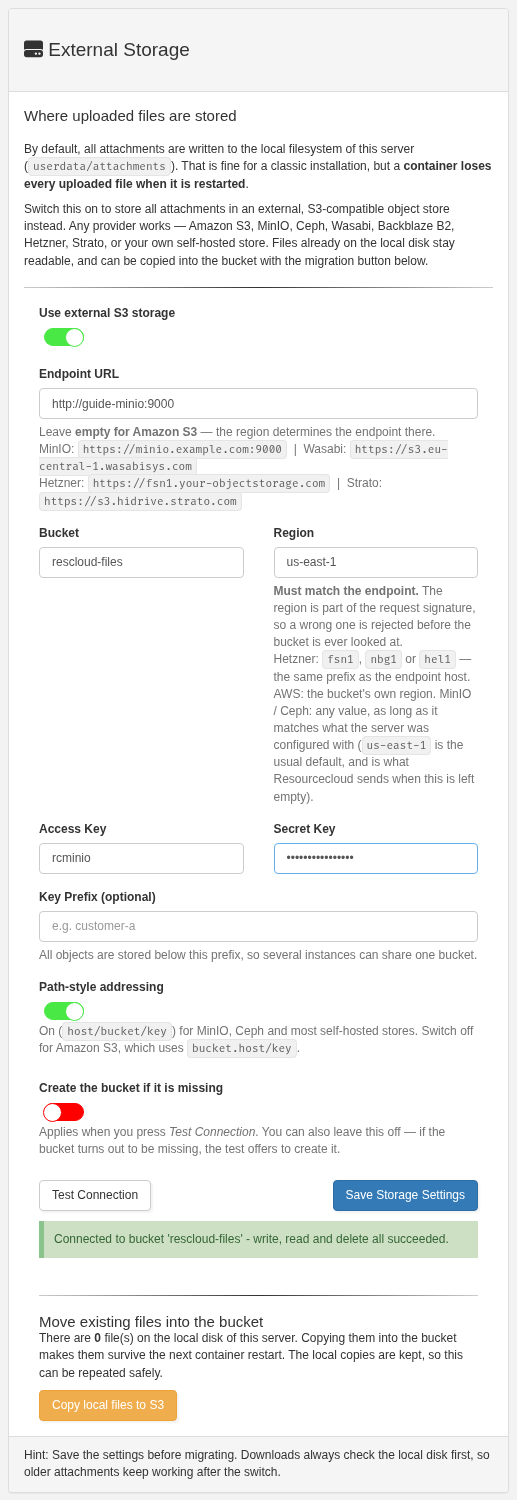
- Open Admin → Global Settings → Data Management and find the External Storage card.
- Switch on “Use external S3 storage.” The connection fields appear.
- Fill in Endpoint URL, Bucket, Region, Access Key and Secret Key. Set Path-style addressing on for MinIO, Ceph and most European/self-hosted providers; off for Amazon S3.
- Press Test Connection. A successful test writes, reads and deletes a probe object and reports it. If the bucket does not exist yet, the test offers to create it.
- Press Save Storage Settings. The secret key is stored encrypted and never shown again — leave it blank on later saves to keep the current one.
Then: download the audit key
Resourcecloud keeps an audit log of who changed what. Nobody can edit it, and a hash chain protected by a secret key makes any later change detectable. Resourcecloud creates that key itself and keeps it in the bucket you just connected — but you need a copy of your own. Without it the log cannot be verified after a restore, a move to another bucket or a replaced key. As RC Admin, you are responsible for that copy.
- Open Admin → Audit Log. A yellow notice says Download the audit key and keep it safe.
- Press Download key and store the file where you keep important secrets — a password manager or a vault, not only on the server and not in the database backup.
- Press “I have stored it.” The notice disappears and the page shows who confirmed the copy. Only an RC Admin can confirm; the Auditor role may download too.
RC_AUDIT_KEY yourself in the deployment, no notice appears — keep that value
with your other secrets instead. More: Resourcecloud audit log guide (docs/auditlog/index.en.html, also a PDF).3 · Turn on AI features (optional)
Two features are AI-backed: semantic search / task-duration estimation, and the AI chat assistant. Both work with a keyword fallback if you leave this off, so it is safe to skip for now and come back later.
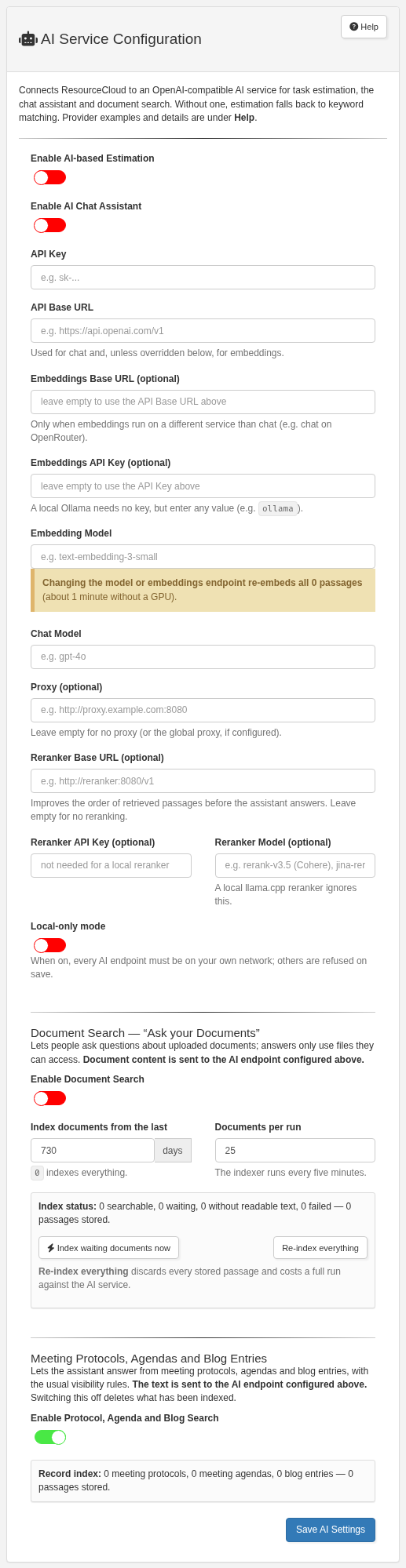
- Open Admin → Global Settings → External Services → AI Service Configuration.
- Choose a provider. Any OpenAI-compatible endpoint works — OpenAI, Gemini, a local Ollama server, or Anthropic for the chat model specifically (Anthropic does not offer an embeddings endpoint, so pair it with OpenAI, Gemini or a local model for embeddings).
- Enter the API key, base URL, embedding model and chat model, switch on the features you want, and press Save AI Settings.
ollama service,
point the base URL at http://ollama:11434/v1 instead of an external provider — document text then never
leaves your infrastructure.4 · Build your organisation
The wizard already created one company, one default area/department/team, and you as its team lead. This is where you shape that into your real org chart before inviting anyone else.
Areas, departments & teams
Open Admin → Org Management. The structure is a ladder — company → areas → departments → teams — with one tab per level (C-Levels, Areas, Departments, Teams).
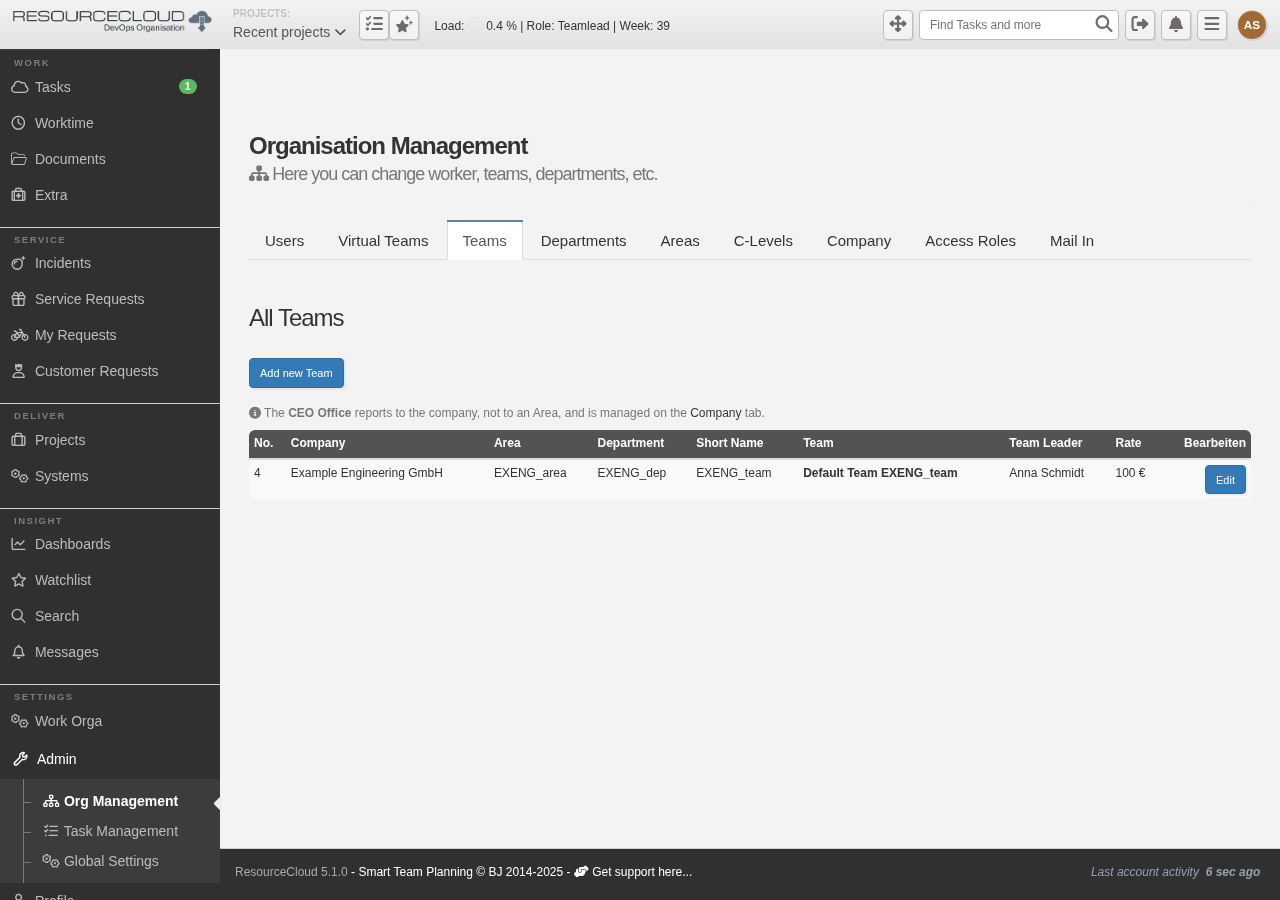
You do not need the full structure decided on day one — start with the teams you know you need, and add areas or departments later as the company grows into them.
Adding users
Still in Org Management, switch to the Users tab. Right after the wizard it lists just you.
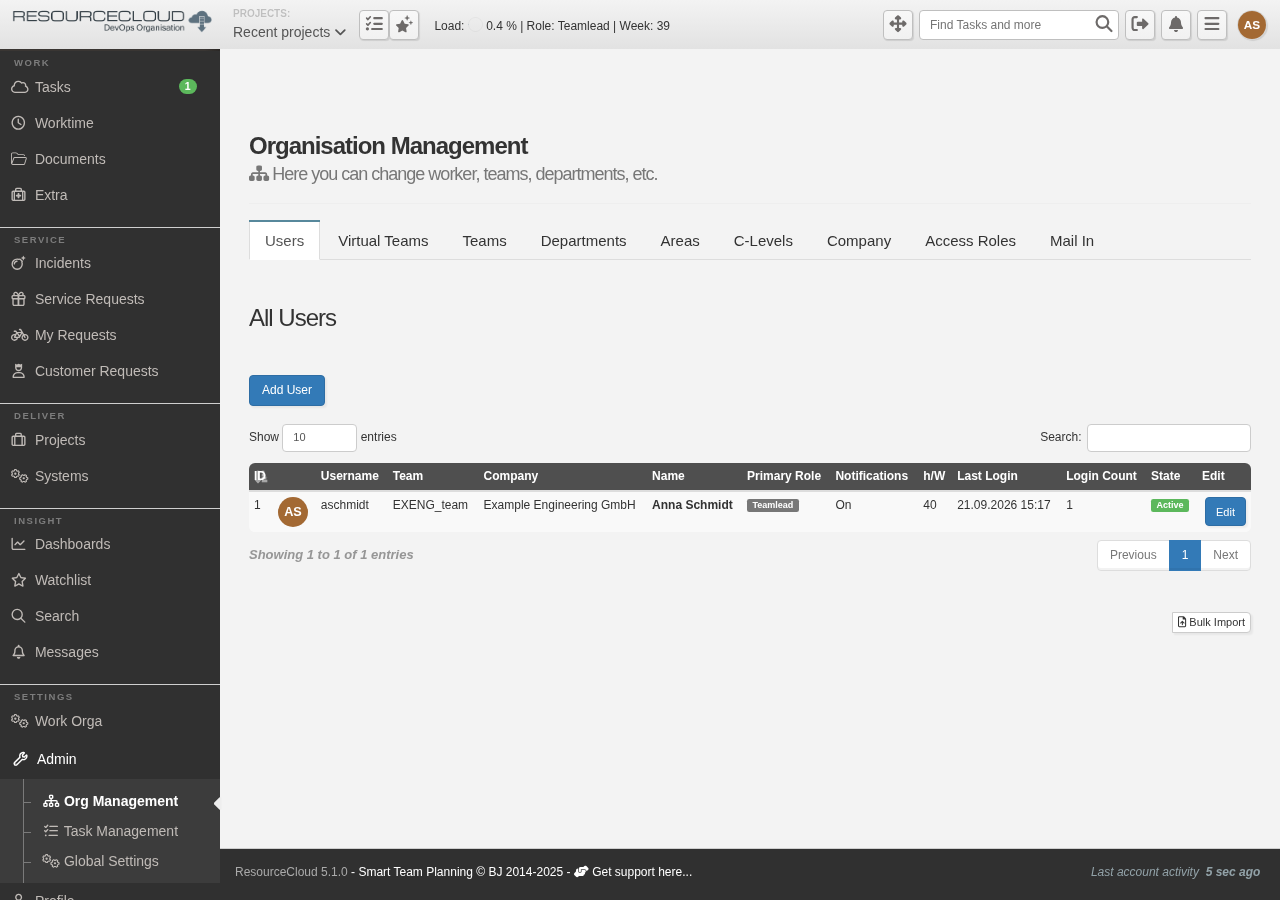
Use Add User for one person at a time, or Bulk Import at the bottom of the tab for many at once.
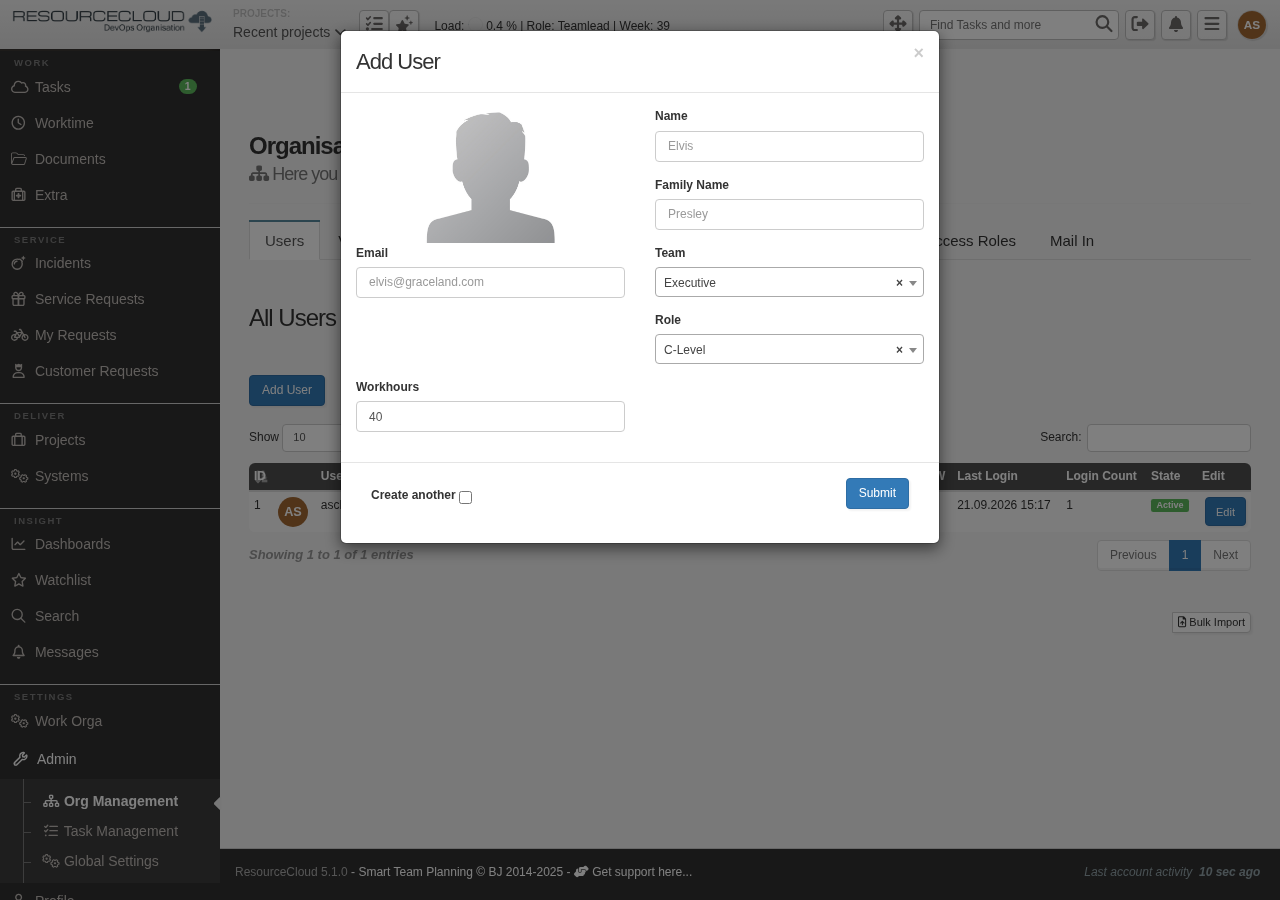
- Resourcecloud generates a one-time password shown to you once after submitting — the new user chooses their own on first login. Hand it over through a channel you trust (not plain email, ideally).
- Workhours per week feed capacity and load planning — set them realistically, especially for part-timers.
- Assign each person to the team they actually work in; it can be changed later, but tasks and load figures follow the team, so getting it right up front saves cleanup.
Roles & access
The Access Roles tab in Org Management lists every role with a description of what it can do — Worker, Teamlead and more. Role decides what a person may see and edit, so pick deliberately rather than defaulting everyone to the widest role.
Two related switches live in Global Settings → Configuration and are off by default: Enable User Reports and Enable User Load Tracking. In many countries the reports feature needs works-council approval before you turn it on — check locally rather than enabling it reflexively.
5 · Familiarise yourself
With storage, AI and the org chart in place, take ten minutes to click through the everyday screens before other people arrive — it makes support questions in week one much faster to answer.
| Screen | What it's for |
|---|---|
| My Tasks | Your personal queue — everything assigned to you, across every project and team. |
| Pool | Unassigned work waiting to be picked up or assigned within a team. |
| Kanban | Board view of a project or team's work, drag-and-drop between columns. |
| Backlog / Sprints | Plan and run sprints; move backlog items into a sprint, track burn-down. |
| Projects | Project-level overview: tasks, capacity, and (once configured) the customer-facing portal. |
| Time tracking | Logged hours per task/project, feeding load and capacity views. |
| Comments | Attached to tasks; comments marked external notify the customer by e-mail (needs the mail server configured — see docs/install-guide.html §6.3 if that step was skipped during installation). |
A good way to learn the shape of the system without touching real data: work the welcome task the wizard created for you end to end — comment on it, attach a file (to confirm storage really is wired up), move it across a Kanban board, and close it.
Go-live checklist
Before you send the first invitation to a colleague:
- External S3 storage connected and Test Connection passed
- Audit key downloaded, stored with your secrets, and confirmed with I have stored it (Admin → Audit Log)
- Mail server configured and a test mail received (set up during installation, or under Global Settings → External Services)
- AI features decided — on with a provider, or deliberately left off
- Areas / departments / teams reflect at least your first real team, not only the wizard defaults
- Roles reviewed for the first few users you plan to add
- You have personally created a task, attached a file, and moved it on a Kanban board
Getting help
The full installation reference — including operating and backup guidance — is Installing Resourcecloud
(docs/install-guide.html in the repository, also available as a PDF). For anything not covered here, reach
out to your Resourcecloud contact.