Installing Resourcecloud
From nothing to a working instance with your company, your first user and outgoing mail — on Docker, on a blank Linux VM, or on Kubernetes.
Overview
Resourcecloud ships as one container image that contains the application (Apache + PHP 8.5). Around it you need a MariaDB database, a small scheduler container and an S3-compatible object store for uploaded files. Every installation target below starts the same three services; the object store is prepared first:
| Service | What it does |
|---|---|
rescloud-mysql | MariaDB 12.3 (11.8 is the minimum — the AI index needs VECTOR columns). |
rescloud-web | Apache + PHP. Installs and migrates the database schema on start, then serves the application. |
rescloud-cron | Same image, runs the scheduler only. Without it no mail is sent and nothing scheduled runs — and the instance still looks healthy. |
All configuration comes from environment variables; nothing is edited inside the image. After the containers are up the steps are identical for every target: run the setup wizard, log in, connect the file storage, download the audit key and do the basic configuration.
What you need
| Minimum | Comfortable | |
|---|---|---|
| CPU / RAM | 2 vCPU / 4 GB | 4 vCPU / 8 GB (more with local AI models) |
| Disk | 20 GB | 50 GB+ (database, uploads, images) |
| Software | Docker Engine 24+ with the Compose plugin (or a Kubernetes 1.25+ cluster) | |
| For HTTPS | A DNS name pointing at the server, and ports 80 and 443 reachable from the internet | |
| For files | An S3-compatible bucket and an access key for it (see below) | |
| For mail | An SMTP account the application may send through | |
Before you start: prepare S3 storage
Everything users upload — task and project attachments, inline images, avatars — is stored through one storage layer. By default that is the local disk of the web container, and Resourcecloud itself warns that a container loses every uploaded file when it is restarted or rescheduled. For any Docker or Kubernetes installation, files therefore belong in an S3-compatible object store, and it is best to have that in place before the first upload, so nothing has to be moved later.
Prepare four things at your storage provider now; you will type them into Resourcecloud in step 6.1:
- A private bucket, e.g.
rescloud-files. Never make it public — downloads are handed out as short-lived signed links. - An access key and secret allowed to read, write and delete objects in that bucket. Give it that bucket only.
- The endpoint URL (empty for Amazon S3) and the region.
- Optionally a key prefix, so several instances can share one bucket.
The bucket will also hold the audit log's verification key and its daily anchor copies, under audit/ (below your prefix). Do not
add an expiry or lifecycle rule for that prefix, and keep it in your bucket backup or replication.
| Provider | Endpoint | Region | Path-style |
|---|---|---|---|
| Amazon S3 | empty | the bucket's region, e.g. eu-central-1 | off |
| Hetzner Object Storage | https://fsn1.your-objectstorage.com | fsn1, nbg1 or hel1 | on |
| Wasabi | https://s3.eu-central-1.wasabisys.com | eu-central-1 | on |
| Strato HiDrive | https://s3.hidrive.strato.com | as issued | on |
| MinIO, Ceph RGW (self-hosted) | https://minio.example.com:9000 | the server's region (us-east-1 is the usual default) | on |
Backblaze B2 and any other S3-compatible service work the same way. The region must match the endpoint: it is part of the request signature, so a wrong one is rejected before the bucket is even looked at.
No provider yet? A throwaway MinIO for testing
This is what the screenshots in this guide use. It is fine for evaluation; for production use a provider or a properly operated cluster.
Run it on the same Docker network as Resourcecloud (after step 5 of the Docker path the network is called
<project>_rescloud):
docker run -d --name minio --network rescloud_rescloud --restart unless-stopped \
  -e MINIO_ROOT_USER=rcminio -e MINIO_ROOT_PASSWORD='choose-a-long-secret' \
  -v minio-data:/data \
  quay.io/minio/minio server /data --console-address :9001

# create the bucket
docker run --rm --network rescloud_rescloud --entrypoint sh quay.io/minio/mc -c \
  'mc alias set l http://minio:9000 rcminio "choose-a-long-secret" && mc mb l/rescloud-files'
Endpoint for Resourcecloud is then http://minio:9000, path-style on. (Use quay.io/minio/minio — the old
minio/minio image is no longer published on Docker Hub.)
1 · Installing with Docker
This path runs the three services with Docker Compose and publishes the web container on a local port over plain HTTP. Put your own reverse proxy in front of it for HTTPS, or use the VM path, which does that for you.
-
Install Docker. Follow docs.docker.com/engine/install
for your distribution, then check:
docker --version docker compose version -
Get the two compose files. They live in the root of the Resourcecloud repository. Copy them to a
working directory of your own — nothing else from the repository is needed, the application is inside the image.
mkdir -p ~/rescloud && cd ~/rescloud # from a checkout of the repository: cp /path/to/rescloud/docker-compose.prod.yml /path/to/rescloud/docker-compose.localtest.yml . -
Create the environment file. Generate two random passwords and write
rescloud.env:cat > rescloud.env <<EOF RC_IMAGE=cptsolo/rescloud:latest DB_NAME=rescloud DB_USER=rescloud DB_PASSWORD=$(openssl rand -hex 16) DB_ROOT_PASSWORD=$(openssl rand -hex 16) # Address people will type in the browser (no trailing slash) BASE_URL=http://localhost:8080 HTTP_PORT=8080 ACCESS_METHOD=http # Required by the compose file (used for proxy routing); any value works here TENANT=rescloud TENANT_HOST=localhost EOF chmod 600 rescloud.envBack this file up. It holds the only copy of the database passwords.BASE_URLmust be exactly the address you will use in the browser, otherwise links in e-mails and some redirects point to the wrong place. On a server, use its hostname or IP instead oflocalhost. -
Create the edge network the compose file expects (once per machine; harmless if a proxy is not used):
docker network create rescloud-edge -
Start it.
docker compose -f docker-compose.prod.yml -f docker-compose.localtest.yml \
  --env-file rescloud.env -p rescloud up -d \
  --scale ollama=0 --scale ollama-init=0
The compose file also defines an optional local embedding server (
ollama) for AI search. The--scaleflags leave it out, which saves a ~1 GB model download; see AI if you want it. Repeat the flags on every laterup. -
Wait until it is healthy. The first start creates the schema, which takes about a minute.
docker compose -p rescloud ps curl -s http://localhost:8080/healthz.phpWhenrescloud-webshows(healthy),/healthz.phpanswers{"status":"ok"}. Any other status names the failed check — see Troubleshooting. -
Open the wizard:
http://localhost:8080/redirects you to the setup wizard. Continue at First-run wizard.
2 · Installing on a blank Linux VM
For a real deployment on a fresh Debian or Ubuntu server. The bundled scripts install Docker, start a Traefik proxy that obtains and renews Let's Encrypt certificates, and deploy Resourcecloud behind it. Nothing is built on the server.
-
Point DNS at the server. Create an
Arecord, for examplerescloud.example.com → 203.0.113.10, and make sure ports 80 and 443 are open in your provider's firewall. The certificate cannot be issued until the name resolves and port 80 is reachable. -
Copy the deployment files to the server. From a checkout of the repository on your machine:
ssh [email protected] 'mkdir -p /opt/rescloud-src'
scp -r deploy docker-compose.prod.yml docker-compose.localtest.yml \
    [email protected]:/opt/rescloud-src/
The layout must stay intact: the scripts look for the compose file one directory above themselves.
-
Prepare the server. Log in and run the bootstrap script. It installs Docker, caps container log size,
creates the shared
rescloud-edgenetwork and starts Traefik. It is safe to re-run.ssh [email protected] cd /opt/rescloud-src/deploy sudo bash bootstrap-server.sh --acme-email [email protected] --staging--staginguses the Let's Encrypt test CA: browsers warn about the certificate, but a DNS mistake cannot exhaust the live CA's rate limit. Add--firewallto also restrict the machine to SSH, HTTP and HTTPS (off by default so a mistake cannot lock you out). -
Deploy the instance.
new-customer.shtakes an instance name and the hostname. It writes/opt/rescloud/customers/<name>.envwith random database passwords, starts the containers and waits until they are genuinely healthy.cd /opt/rescloud-src/deploy ./new-customer.sh main rescloud.example.com --no-ai --start- Without
--admin-email / --admin-name / --companythe instance shows the manual setup wizard — what you want for your own installation. With all three it configures itself and prints an admin password once. --no-aiskips the local AI services. Leave it out to also start an embedding server and reranker (see AI).- The instance name must match
[a-z][a-z0-9_]*; it is also the compose project name.
- Without
-
Check it.
docker compose -p main ps
curl -sk https://rescloud.example.com/healthz.php
Open
https://rescloud.example.com/. With--stagingthe browser warns about the certificate — accept it for now. -
Switch to real certificates once the page loads:
sudo bash bootstrap-server.sh --acme-email [email protected]     # no --staging
docker compose -p traefik up -d --force-recreate
Traefik then requests a trusted certificate on the next request and renews it automatically.
-
Back up
/opt/rescloud/customers/*.envand the Docker volumes — see Operating it. Then continue at First-run wizard.
docs/DEPLOYMENT.md in the repository.3 · Installing on Kubernetes
A ready-made manifest, install-guide/rescloud-k8s.yaml, creates a
rescloud namespace with the database (StatefulSet), the web and scheduler Deployments, their volumes, Services
and an Ingress. It mirrors the Docker Compose setup one to one.
Prerequisites
- An S3 bucket and key, prepared as described above — pods are ephemeral, so this matters even more here than on a single Docker host.
- A cluster (1.25+) with a default
StorageClass(or setstorageClassNamein the manifest). - An Ingress controller (the manifest assumes ingress-nginx) and, for HTTPS, cert-manager with a ClusterIssuer. Neither is required for a first test — see the port-forward tip below.
kubectlpointing at that cluster, and a DNS name for the Ingress.
-
Copy the manifest and edit it. Every line that needs your attention is marked
# <-- CHANGE:Object Setting Set to Secret rescloud-dbDB_PASSWORD,DB_ROOT_PASSWORDLong random values ( openssl rand -hex 16)ConfigMap rescloud-configrc_baseurlThe public URL, e.g. https://rescloud.example.comConfigMap rc_mailsenderSender address for outgoing mail Deployments imagePin a version tag (same on web and cron), or your own registry Ingress host, TLS host, class, issuer Your hostname, ingress class and cert-manager issuer -
Apply it.
kubectl apply -f rescloud-k8s.yaml
kubectl -n rescloud get pods -w
The database becomes
Readyfirst;rescloud-webthen installs the schema (the startup probe allows up to five minutes) and becomesReadywhen/healthz.phpanswers 200.rescloud-cronstarts on the same node as the web pod, because both share the uploads volume. -
Follow the logs if anything is slow:
kubectl -n rescloud logs deploy/rescloud-web -f -
Reach it. Once DNS and the certificate are in place, open
https://rescloud.example.com/. To test before that, forward a port and setrc_baseurl/rc_access_methodtohttp://localhost:8080/http:
Continue at First-run wizard.kubectl -n rescloud port-forward svc/rescloud-web 8080:80
Design notes
- One web replica,
Recreatestrategy. Uploads and sessions live on volumes. Running several web replicas needs aReadWriteManystorage class forrescloud-userdataandrescloud-sessions; migrations are serialised by a database lock, so several pods starting together is safe. - Exactly one
rescloud-cron. Never scale it up. - Secrets. Database passwords are in a
Secret; for anything beyond a test, source them from your secret manager instead of committing the manifest. - Upgrades. Change the image tag on both Deployments and apply. The new web pod migrates the schema before it reports Ready.
- Mail via environment. Instead of the settings page you can add
rc_smtp_host,rc_smtp_port,rc_smtp_user,rc_smtp_pass,rc_smtp_secuandrc_smtp_fromto the ConfigMap/Secret.
4 · First-run wizard
On a database that holds no company and no user, the application starts the setup wizard at
/basic_setup. It runs exactly once: as soon as a team and a user exist, the same address forwards to the
application. It has three tabs.
Tab 1 — The first user
This person becomes the first administrator and team lead. Enter first name, last name, a password (twice) and an e-mail address; a picture is optional — skip it for now, so no file is written before the storage is connected.
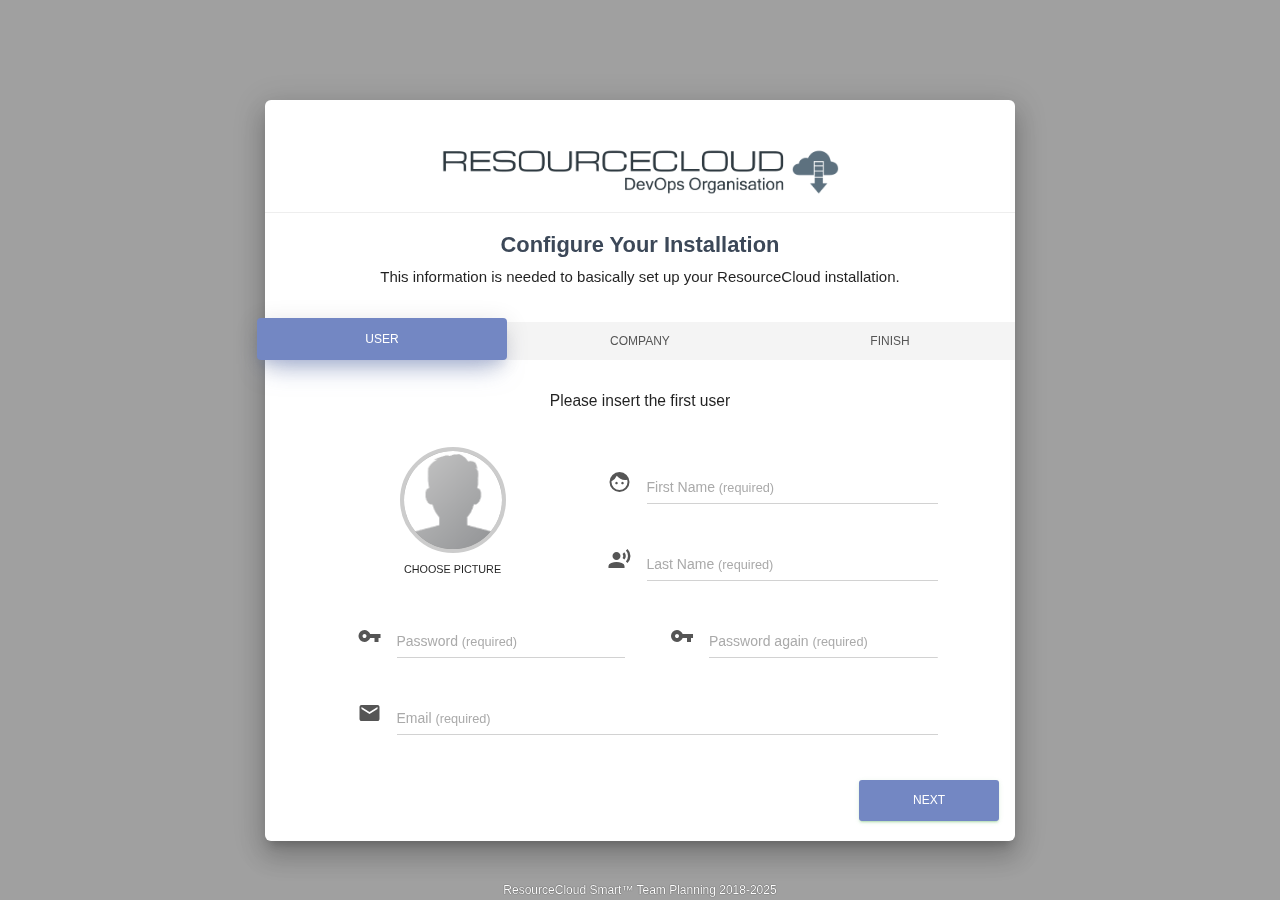
Choose a strong password — this account can configure everything. The login name is derived for you: first letter of the
first name plus the family name in lower case (Anna Schmidt → aschmidt).
Tab 2 — Your company
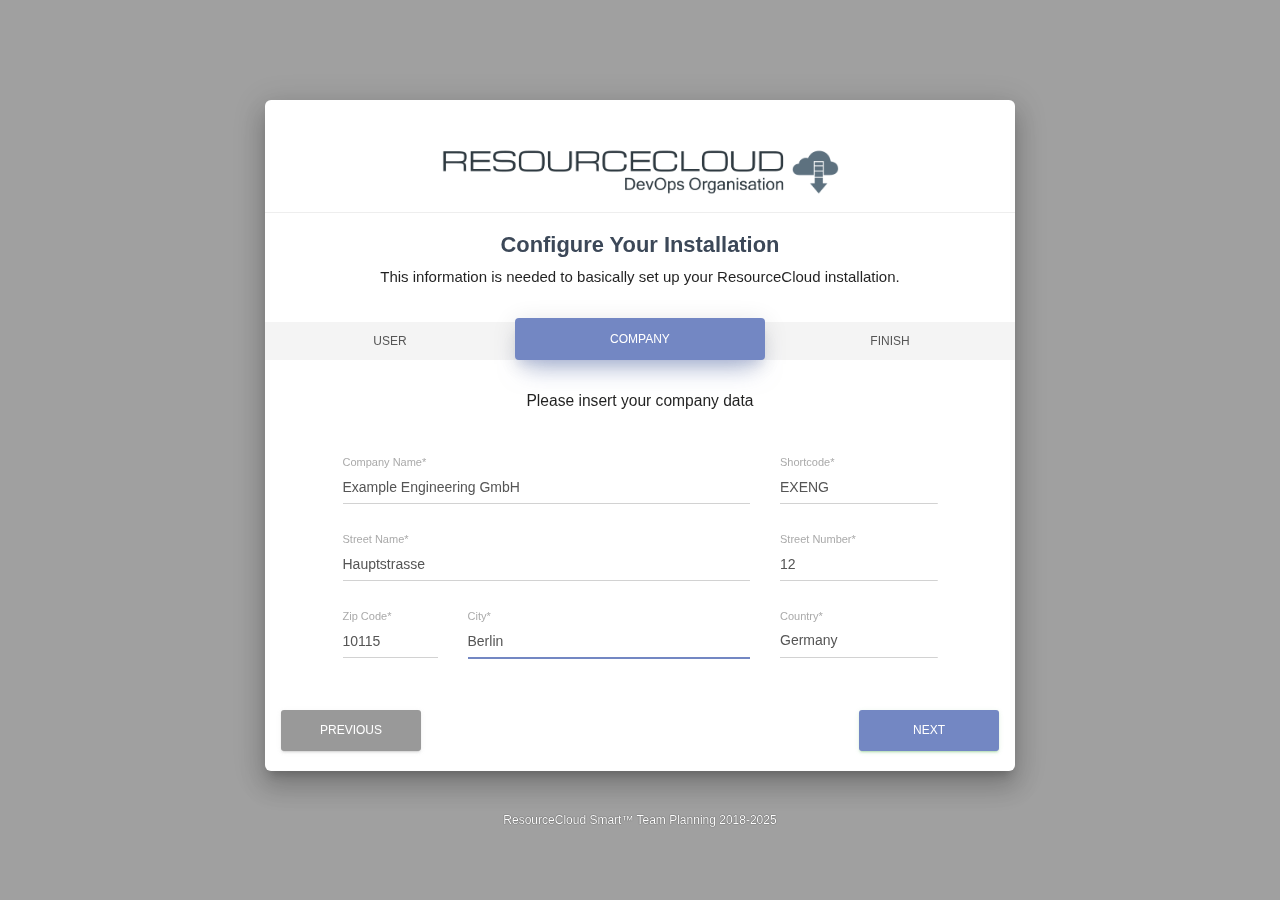
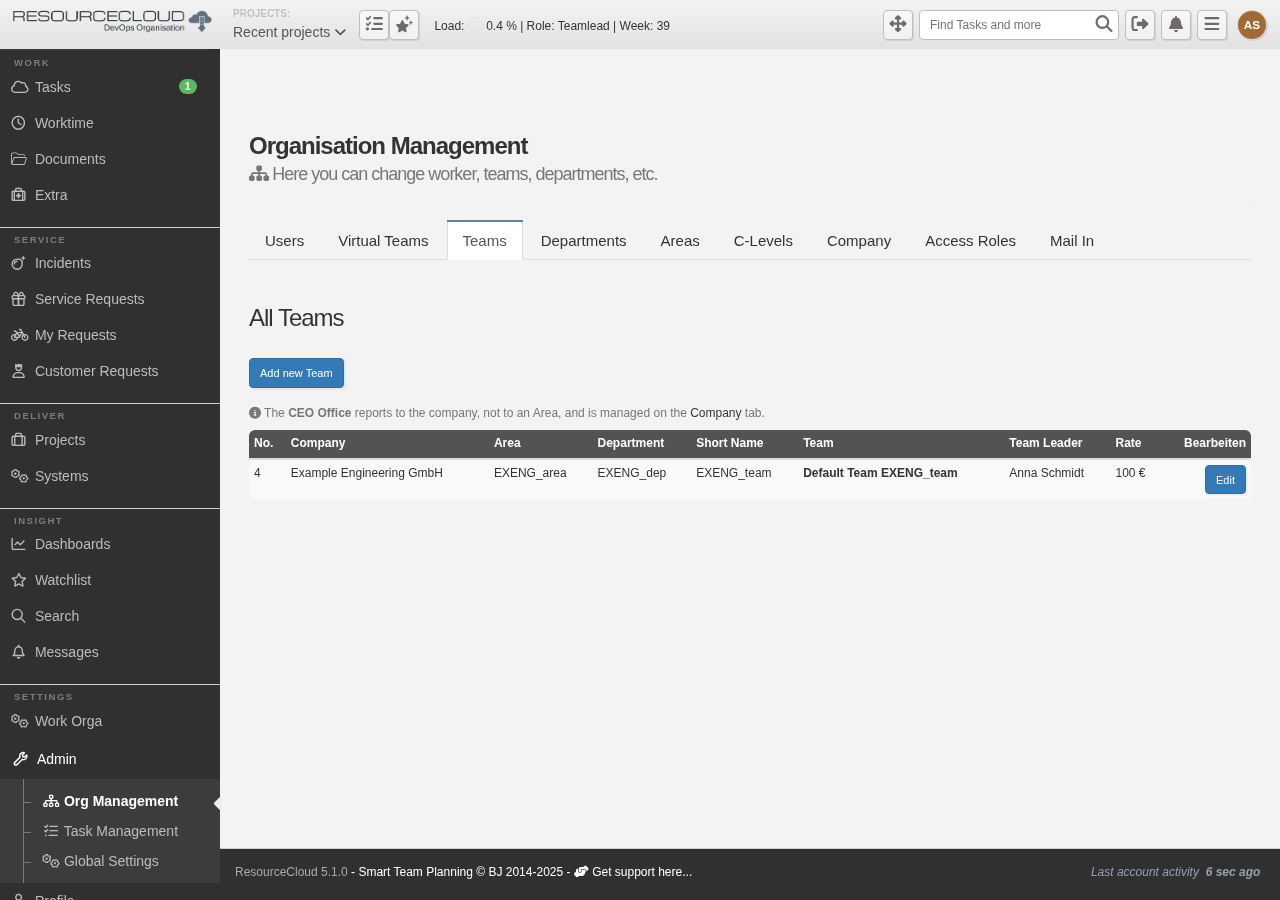
From this the wizard builds the starting organisation: your company, a default area, department and team
(<SHORT>_area, <SHORT>_dep, <SHORT>_team), with the first user as team leader, plus a welcome task.
Everything can be renamed and extended later in Org Management.
Tab 3 — Finish
Click Next, read the note, then Finish. The wizard writes the configuration and shows a confirmation:
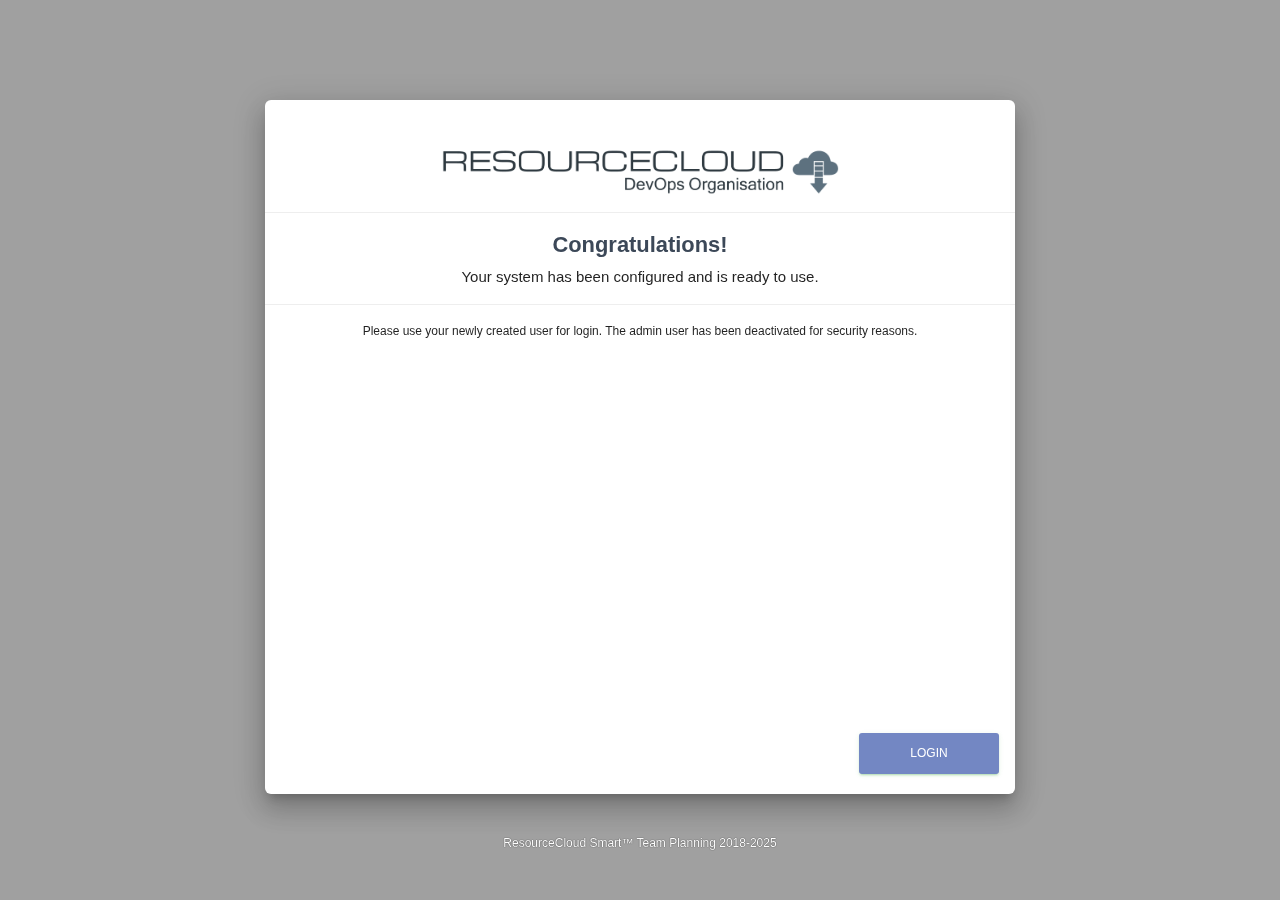
admin account is deactivated for security; use the user you just created.rc_seed_* environment variables (this is what new-customer.sh --admin-email … --company …
does). The wizard is then never shown.5 · First login
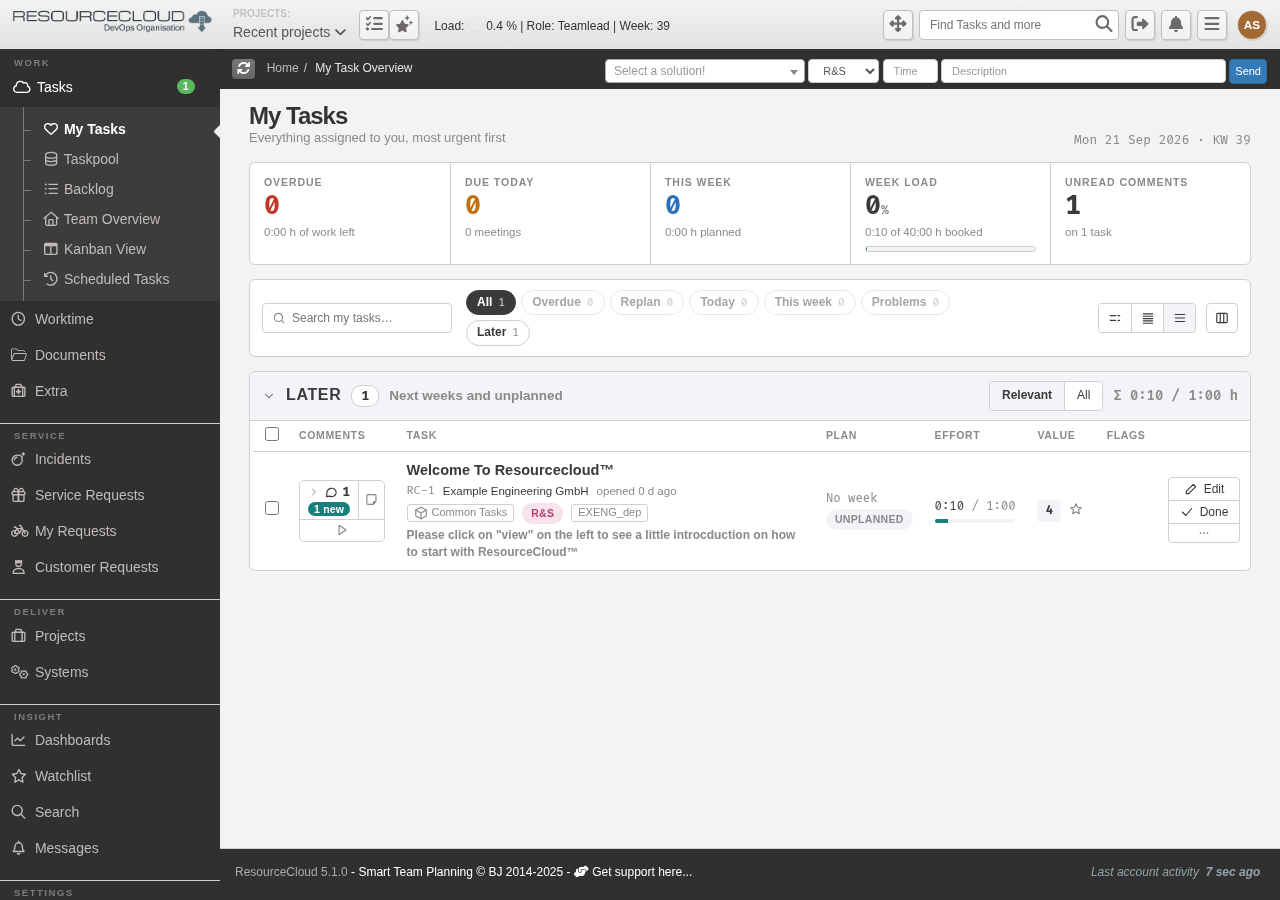
Click Login and sign in with the login name from the wizard (the field is labelled “Email” but takes the login name) and the password you chose.
aschmidt (or whatever your first user's login name is).You land on My Tasks with one welcome task in your team. The navigation on the left is your map: everything you need for setup is under Admin, near the bottom in the Settings group.
6 · Basic configuration
A fresh installation runs, but five things are worth doing before you invite anyone — and the first one before anybody uploads a file. Right after it, download the audit key. They all need the administrator role.
6.1 File storage (S3) — do this first
Open Admin → Global Settings → Data Management and find the External Storage card. Until it is switched on, uploads go to the container's local disk.
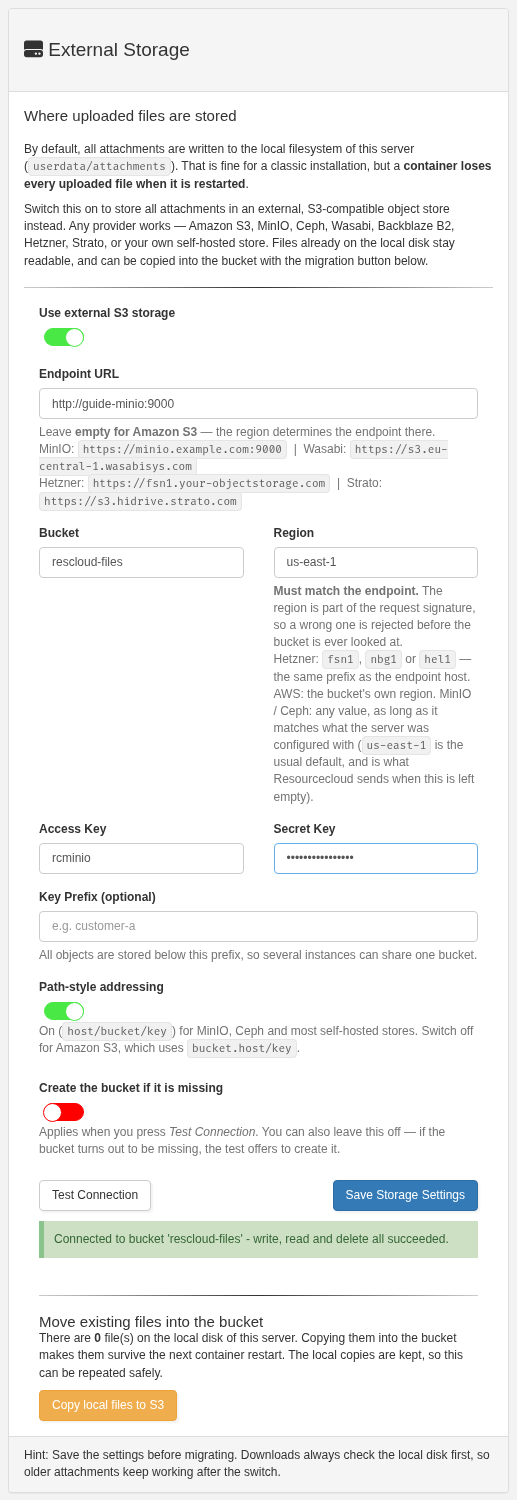
- Switch on Use external S3 storage. The fields appear.
- Enter Endpoint URL (leave empty for Amazon S3), Bucket, Region, Access Key and Secret Key — the values you prepared above. Optionally set a Key Prefix.
- Set Path-style addressing on for MinIO, Ceph and most self-hosted or European providers; off for Amazon S3.
- Press Test Connection. It writes, reads and deletes a probe object and reports “Connected to bucket … write, read and delete all succeeded.” If the bucket does not exist, the test offers to create it (or tick Create the bucket if it is missing beforehand).
- Press Save Storage Settings. The secret is stored in the database and never shown again; leave the field blank on later saves to keep it.
If files were uploaded before you switched storage on, the card shows how many, with a Copy local files to S3 button that copies them across (safe to repeat; local copies are kept). A half-filled configuration silently falls back to local storage rather than losing uploads — so always run the connection test and check that the card reports success.
To verify end to end, attach a file to the welcome task and look in the bucket: a new object named <hash>/<filename> appears (below your prefix, if you set one).
Then: download the audit key
Resourcecloud keeps an audit log of who changed what. Nobody can edit it, and a hash chain protected by a secret key makes any later change detectable. Resourcecloud creates that key itself and keeps it in the bucket you just connected — but you need a copy of your own. Without it the log cannot be verified after a restore, a move to another bucket or a replaced key. As RC Admin, you are responsible for that copy.
- Open Admin → Audit Log. A yellow notice says Download the audit key and keep it safe.
- Press Download key and store the file where you keep important secrets — a password manager or a vault, not only on the server and not in the database backup.
- Press “I have stored it.” The notice disappears and the page shows who confirmed the copy. Only an RC Admin can confirm; the Auditor role may download too.
RC_AUDIT_KEY yourself in the deployment, no notice appears — keep that value
with your other secrets instead. More: Resourcecloud audit log guide (docs/auditlog/index.en.html, also a PDF).6.2 Global settings
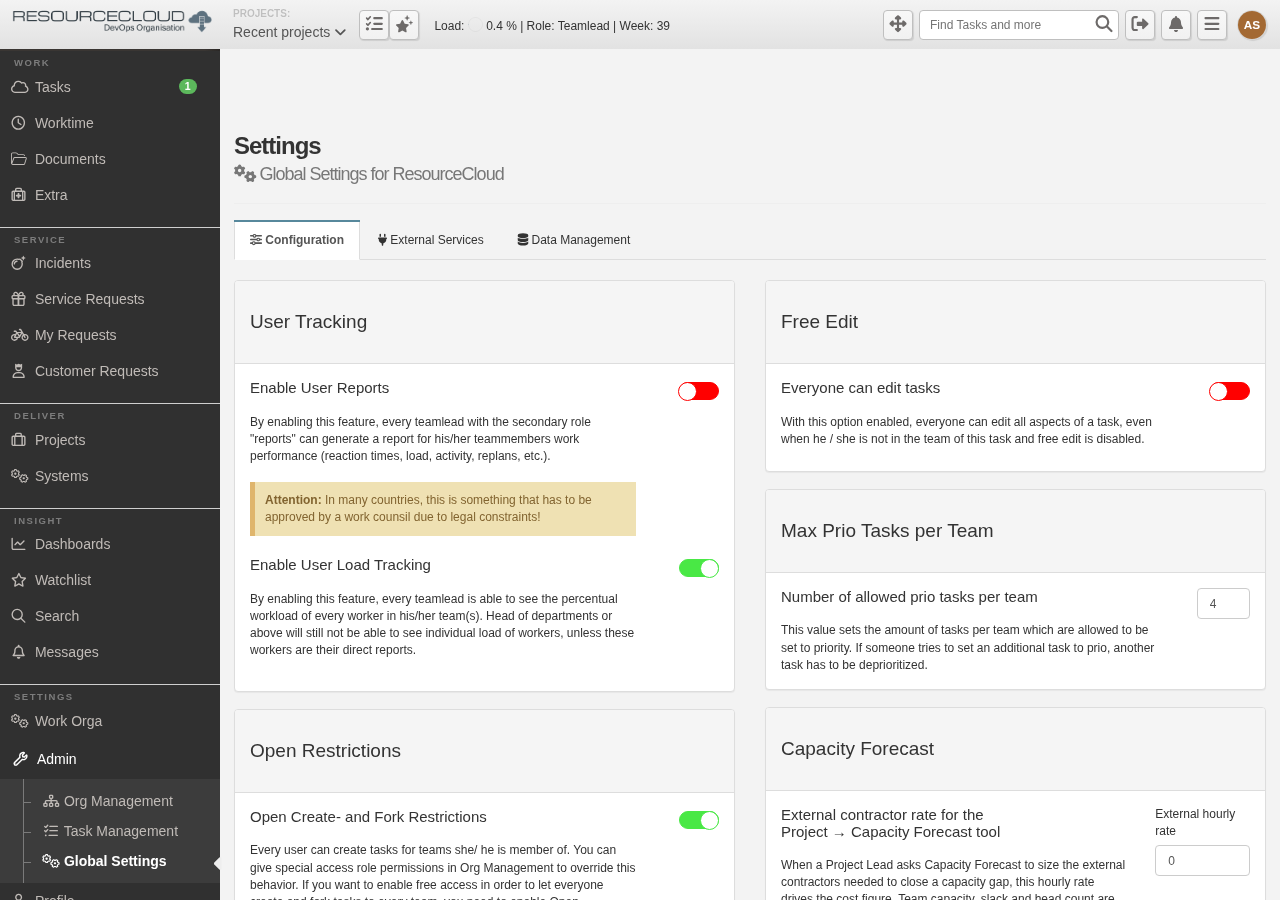
Admin → Global Settings (/rc_settings) has three tabs: Configuration, External Services
(mail, AI, video, proxy) and Data Management (file storage, see 6.1). The Configuration tab controls behaviour for the whole installation:
| Setting | What it does / recommendation |
|---|---|
| Enable User Reports | Lets team leads with the “reports” role generate performance reports. Off by default — in many countries this needs works-council approval, so enable it deliberately. |
| Enable User Load Tracking | Team leads see each worker's percentual workload. |
| Free Edit / Open Restrictions | Whether people may edit or create tasks outside their own team. Leave the defaults unless you have a reason. |
| Max Prio Tasks per Team | Cap on tasks flagged as priority per team (default 4). Keeps “everything is urgent” in check. |
| Default Support Team | The team that receives tickets from new customers. Pick your team here; it defaults to the one the wizard created. |
| Capacity Forecast | Hourly rate used when a project's capacity gap is sized in external contractors. |
| Meeting Times | Daily window in which meetings can be planned, and an optional blocked noon break. |
| Global Event Types | Calendar event types offered to everybody (absence, on-call, …). Add your own. |
Press Submit in each card after changing it.
6.3 Mail server (SMTP)
Resourcecloud sends notifications, ticket replies and password e-mails. The scheduler container drains the mail queue, so the
mail setup needs both a working SMTP account and a running rescloud-cron.
Open Global Settings → External Services and find Mailserver Configuration:
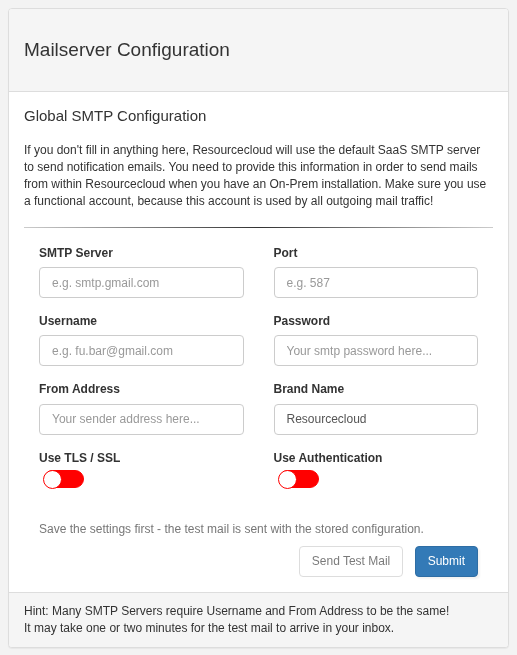
- Enter SMTP Server and Port (587 with STARTTLS is typical, 465 for implicit TLS).
- Enter Username and Password, and switch on Use Authentication and Use TLS / SSL as your provider requires.
- From Address — many providers insist that it equals the username or belongs to the authenticated domain.
- Brand Name is shown in outgoing mail.
- Press Submit, then Send Test Mail. It can take a scheduler cycle (up to five minutes by default) to arrive.
rc_smtp_* environment variables.6.4 Teams, roles and users
Admin → Org Management (/org_management) is where the organisation lives: users, virtual teams, teams,
departments, areas, your company, access roles and mail-in addresses.
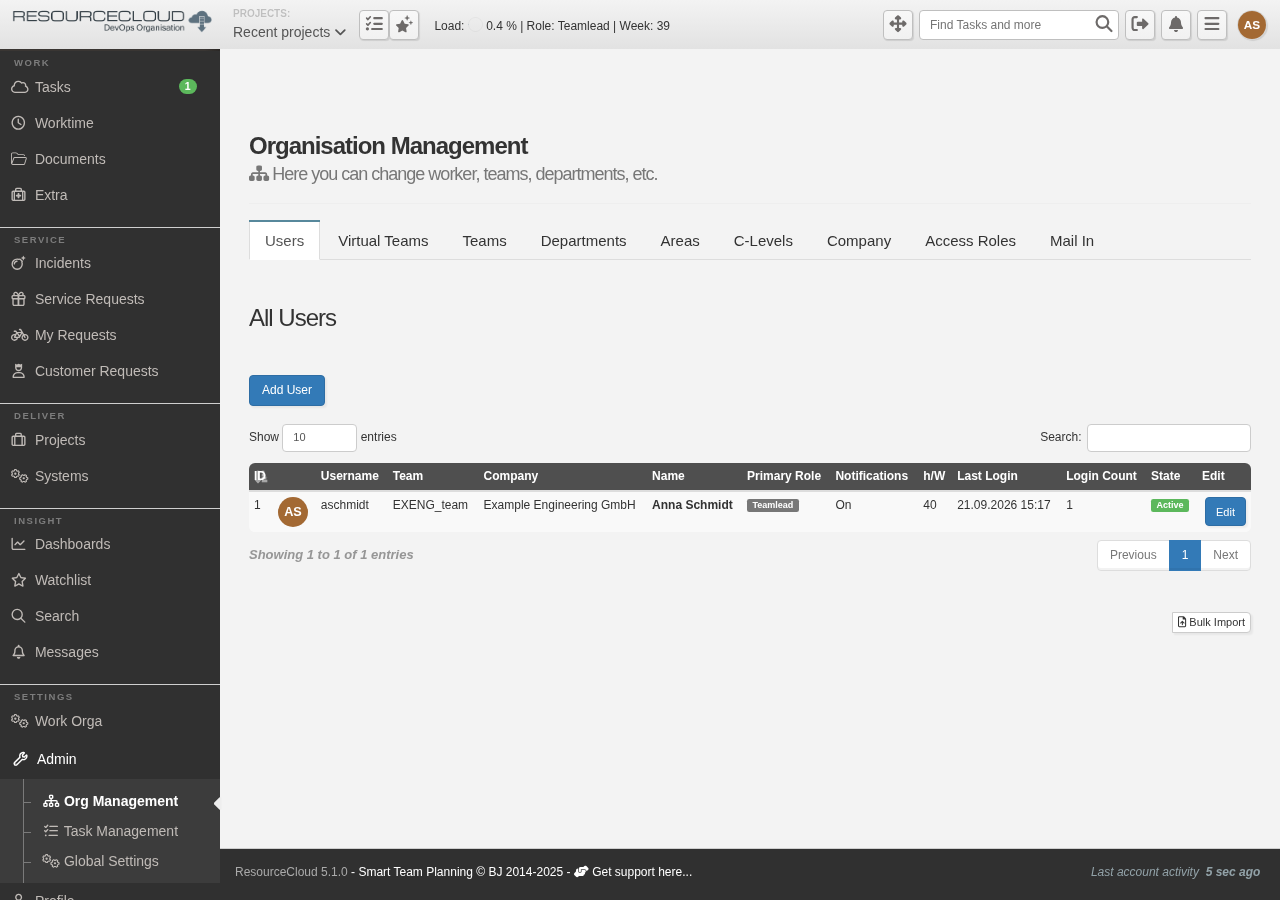
The structure is a ladder from the company down to the team, with a tab for every level (C-Levels, Areas, Departments, Teams). Look at the Teams tab to see what the wizard created:
To add people, use Users → Add User:
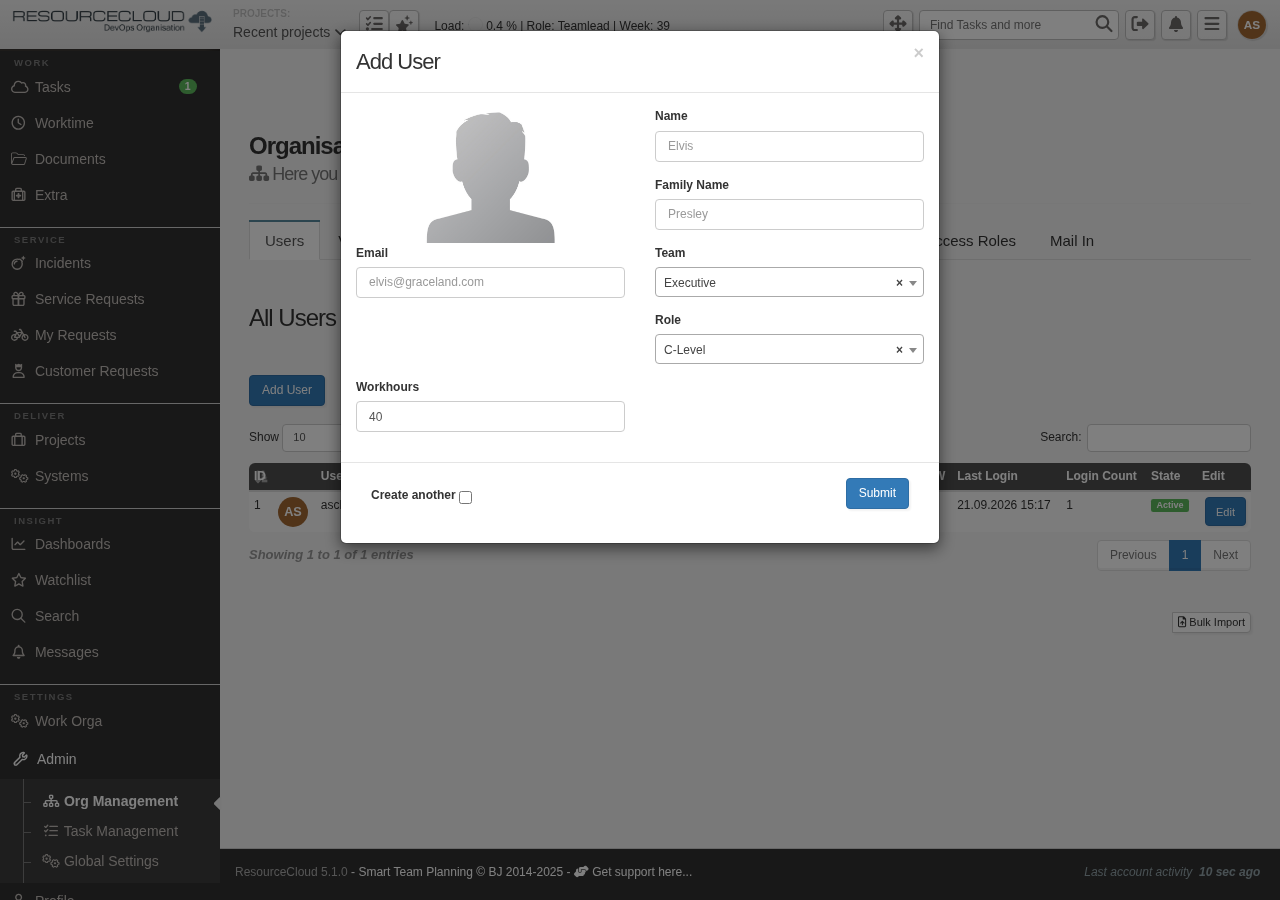
- Resourcecloud generates a one-time password and shows it to you after submitting. The new user is forced to choose their own on first login. Hand it over through a safe channel.
- Role decides what the person may do (Worker, Teamlead, and more). The Access Roles tab lists them all with descriptions.
- Workhours per week feed the capacity and load planning — set them realistically (part-timers!).
- Many users at once: use Bulk Import at the bottom of the Users tab.
6.5 AI features (optional)
Two features use an AI service: semantic task-duration estimation / document search and the AI chat assistant. Both are off until you enable them in Global Settings → External Services → AI Service Configuration.
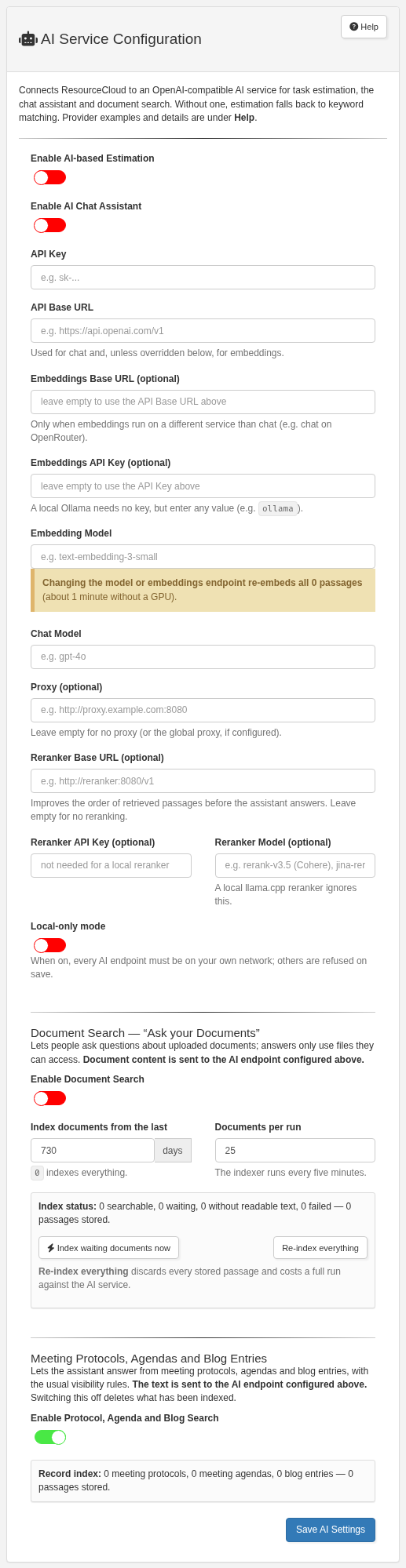
- Any OpenAI-compatible endpoint works: OpenAI, Gemini, a local Ollama, or Anthropic for chat. Enter API key, base URL, embedding model and chat model, switch the features on and Save AI Settings.
- Anthropic offers no embeddings — use OpenAI, Gemini or the local embedding server for that part.
- The compose file's
ollamaservice (and the optionalreranker) provide embeddings on your own hardware, so no document text leaves the server. Start them by omitting the--scale ollama=0 --scale ollama-init=0flags; the first start downloads the model (roughly 0.3–1.7 GB depending on the model). Then usehttp://ollama:11434/v1as base URL.
7 · Operating it
Back up
| What | Docker / VM | Kubernetes |
|---|---|---|
| Database | docker exec <project>-rescloud-mysql-1 mariadb-dump -uroot -p"$DB_ROOT_PASSWORD" rescloud > backup.sql |
kubectl -n rescloud exec sts/rescloud-mysql -- sh -c 'mariadb-dump -uroot -p"$MARIADB_ROOT_PASSWORD" rescloud' > backup.sql |
| Uploads & avatars | The S3 bucket — use your provider's versioning or replication. The userdata volume/PVC then only holds a local cache and anything written before S3 was switched on. | |
| Secrets | The .env file | The rescloud-db Secret |
| Audit key | Download it once (6.1) and keep it with your secrets. It also lives in the S3 bucket under audit/, so back up database and bucket together. | |
Use mariadb-dump — MariaDB 12 no longer ships the mysqldump name. Sessions need no backup (losing them logs everyone out once).
Update
# Docker (same command as install, after pulling)
docker compose -f docker-compose.prod.yml -f docker-compose.localtest.yml \
  --env-file rescloud.env -p rescloud pull
docker compose -f docker-compose.prod.yml -f docker-compose.localtest.yml \
  --env-file rescloud.env -p rescloud up -d --scale ollama=0 --scale ollama-init=0

# Kubernetes
kubectl -n rescloud set image deploy/rescloud-web  web=cptsolo/rescloud:<new-tag>
kubectl -n rescloud set image deploy/rescloud-cron cron=cptsolo/rescloud:<new-tag>
The web container applies pending database migrations on start and reports unhealthy until the schema matches. Take a database
backup first. On a VM, deploy/rollout.sh updates with near-zero downtime.
Where to look
- Logs:
docker compose -p rescloud logs -f rescloud-web·kubectl -n rescloud logs deploy/rescloud-web - Health:
/healthz.php(200 only when config, database and schema are all fine) - Scheduler heartbeat: if the scheduler stops for 15 minutes, every administrator sees a red banner in the application.
8 · Troubleshooting
| Symptom | Cause and fix |
|---|---|
/healthz.php → 503 db_unreachable | Database not up yet, or wrong DB_* values. Check docker compose ps / the mysql pod. Changed a password after first start? The database keeps the old one — either change it inside MariaDB or recreate the volume (destroys data). |
503 schema_outdated / schema_missing | Migration still running or failed — read the web container log. Usually resolves itself within a minute on first start. |
| Web container exits at once | A required variable is missing; the log names it (DB_PASSWORD, TENANT, …). For compose, the message reads “set …”. |
| Redirects go to the wrong address, links in mails are wrong | BASE_URL / rc_baseurl and ACCESS_METHOD must match the URL in the browser (http vs https, host, port). |
| No mails arrive | Check in order: rescloud-cron running, SMTP settings and Send Test Mail, the log of the cron container, and the spam folder. |
| Wizard does not appear; you land on a login page | The database already holds a company and a user (or the instance was seeded through rc_seed_*). Log in normally. |
| Browser certificate warning on a VM install | Expected while on --staging. If it persists after switching, check DNS and that port 80 is reachable, then docker compose -p traefik logs traefik. |
| Port 8080 already in use | Change HTTP_PORT and BASE_URL in the env file and run up -d again. |
Screenshots were taken from a real installation of version 5.1.0 following the Docker steps above, with MinIO as the object store.
More detail: docs/DEPLOYMENT.md and docker/README.md in the repository.