How Resourcecloud works, how to set it up and how to run it. Every section links to the full guides, as web pages and as PDF.
Getting started
What Resourcecloud is
One platform for projects, people and service: tasks and sprints, time and leave, capacity planning, incidents with SLAs, files, customers and invoices, with an AI assistant on top. They share data, rights and notifications, so a change in one place is known in the next.
Runs as SaaS with hosting in Germany or in your own data centre (Docker, Kubernetes, VM).
One tariff with all modules, in German and English.
Responsive: the same product on a phone and on a 34-inch screen, no app to install.
First steps
After the setup wizard you create your organisation: teams, people and their weekly hours. From then on every task, booking and absence has a home.
Sign in with the admin account created at installation.
Create teams and users, set hours per week and roles.
Connect mail, storage and (optionally) the AI service under Global Settings.
Invite the first team and let them create their first tasks.
Guides for this topic
First stepsSetup wizard, first login and the first team.ReadPDF
Installation guideDocker, Kubernetes, storage, mail and AI.ReadPDF
Roles, teams and visibility
What a person sees follows their teams and their place in the organisation. Roles unlock functions such as the Optimizer or project planning, and an RC Admin hands them out.
People work in one or several teams; tasks belong to a team and have an assignee.
Private tasks are visible to the creator and the assignee only.
Utilisation data is graded by a visibility model that works councils can agree to.
Guides for this topic
Works council packageWhat is recorded, visibility model, agreement.ReadPDFGerman only
Daily work
Tasks and priorities
Everything that consumes time is a task, from a development item to leave. "My Tasks" shows what is assigned to you, most urgent first, with overdue, this week and later in separate groups.
Every task carries a calculated value from project priority, impact, due date, size, age and blockers.
Forks hand a task to another team without losing the history.
Custom fields extend tasks and projects; required fields can block "Done" until they are filled.
Guides for this topic
Custom fieldsFields for tasks and projects.ReadPDF
Kanban and lists
See the same work as a board or as tables. Cards show type, milestone and assignee, and blocked work stands out.
Pool, assigned, testing and done lanes for each team, with stages you define.
The task pool holds work nobody has taken yet.
Dropping a card in the Done lane opens the Done dialog, so nothing is finished by accident.
Time, working hours and leave
Book time with a timer or by hand on tasks, tickets and customers. Working hours with come and go and an approval step, leave and sick days sit in the same system as the plan.
Booked time feeds working-time records, reports, project costs and invoices.
A sick note or approved leave lowers the capacity of the week; scheduled tasks move on or go to the deputy and meetings are cancelled with a reason.
Calendar view shows meetings, absences and scheduled tasks together; subscribe to it from any calendar app.
Plan a meeting once and the rest follows: invitations, agenda, video link, minutes, attendance and booked time. Every participant gets a task, so a meeting takes capacity like any other work.
Single meetings and recurring series with a standing agenda. Move or cancel one occurrence without touching the rest.
Invitations with accept or decline; guests without an account answer through a personal link. A reminder with a Join button appears five minutes before the start. Jitsi is built in; Zoom, Webex, Google Meet and Teams can be connected.
Shared minutes: everybody adds topics, notes and next steps to one table, and a row becomes a task in one click. The organizer finalizes, participants agree, and the minutes can be findable by participants only or by everybody.
Attendance is marked by hand or fetched from the video provider's report. A series shows meetings held and attendance per person.
Time is booked for you: a series can close each occurrence and book the planned minutes for everybody, so working-time records include the meeting.
Ill at home or on leave: upcoming meetings are declined automatically, with the reason in the comments. If the person organizes it, the meeting stands and the group is told. Past meetings are never touched.
The Optimizer shows how much working time goes into meetings.
Guides for this topic
Video conferencingJitsi, Zoom, Webex, Google Meet and Teams.ReadPDF
Talk where the work is: comments on tasks, a chat per task and rooms for teams. Type @name to mention a colleague.
Only people who may see the task are notified, so a mention never leaks anything.
Comments by mail: replies to a ticket e-mail become comments.
Webhooks can carry mentions to Slack or Microsoft Teams.
Guides for this topic
WebhooksEvents, signatures, retries, Slack, Teams and n8n.ReadPDF
Files and search
Documents live next to the work, with folders, tags and a clear answer to who can see them. The search and the assistant read the same documents and show only what the asking person may see.
Folder and document rights per team, project or person; versions and trash.
Full-text search and meaning-based search with the source shown.
Uploaded text is indexed for the assistant unless you switch it off per document.
Notes & Docs: your documentation space
For teams leaving Atlassian, Notes & Docs replaces Confluence for most of what a wiki is used for. With the Jira importer, work and documentation move to one system with one set of users and rights.
Spaces for a team, project or topic, each with an access list (people, teams or everybody; read, edit, admin). They are never created automatically, so the wiki does not fill up with empty spaces.
A page tree with paths, and branches that move between spaces. A visual editor (Markdown underneath) with tables, task lists, code, pictures, a table of contents and built-in draw.io diagrams that send nothing out.
Every page has a history with a line-by-line comparison of versions; restoring one creates a new version.
Templates for runbooks, decision records or project pages, with date, author and space filled in.
Documentation that stays current: drafts until published, review dates that give the owner a task (and the manager after two weeks), and unreviewed pages leave search and the assistant until confirmed. Space health shows what needs care.
Rights you can see: the Access button shows who can read and write a page, and why. Personal notes can be shared with people, teams or everybody, and encrypted.
Search and the AI assistant answer from the same pages, with their source, and only from what you may read.
Switching from JiraExport, import, preview and undo.ReadPDF
Planning
Projects and portfolio
Classic and agile projects with milestones, tasks, budgets and reports. The project dashboard shows progress, activity, reservations and costs for each project.
Start a project from a template: the template holds milestones, tasks, dependencies and day offsets, and every date follows the new start.
Custom fields for tasks and projects, defined by team or for the whole company.
Programs and a decision step for project approval.
Guides for this topic
Project templatesStart projects from saved ones.ReadPDF
Custom fieldsFields for tasks and projects.ReadPDF
Gantt, critical path and baselines
For classic projects the Gantt chart shows dependencies and milestones, calculates the critical path and the slack, and compares the current plan with a frozen baseline.
"Plan from dependencies" fills the planned dates; dates you typed are never overwritten without asking.
Freeze a baseline and see which items moved, were added or removed, and by how many days.
Dragging a bar writes whole planned days.
Guides for this topic
Project templatesStart projects from saved ones.ReadPDF
Capacity, autoplanner and the Optimizer
Resourcecloud knows who works how much, who is absent and what is booked. From that it plans, forecasts and analyses.
The autoplanner places tasks day by day against capacity, leave and sick days; dates set by people stay.
Capacity forecasts and reservations show what fits before you commit to a project.
The Optimizer analyses the work of the whole company: efficiency, booked time, customer wait, unplanned work and the teams with the longest backlog.
Capacity planning
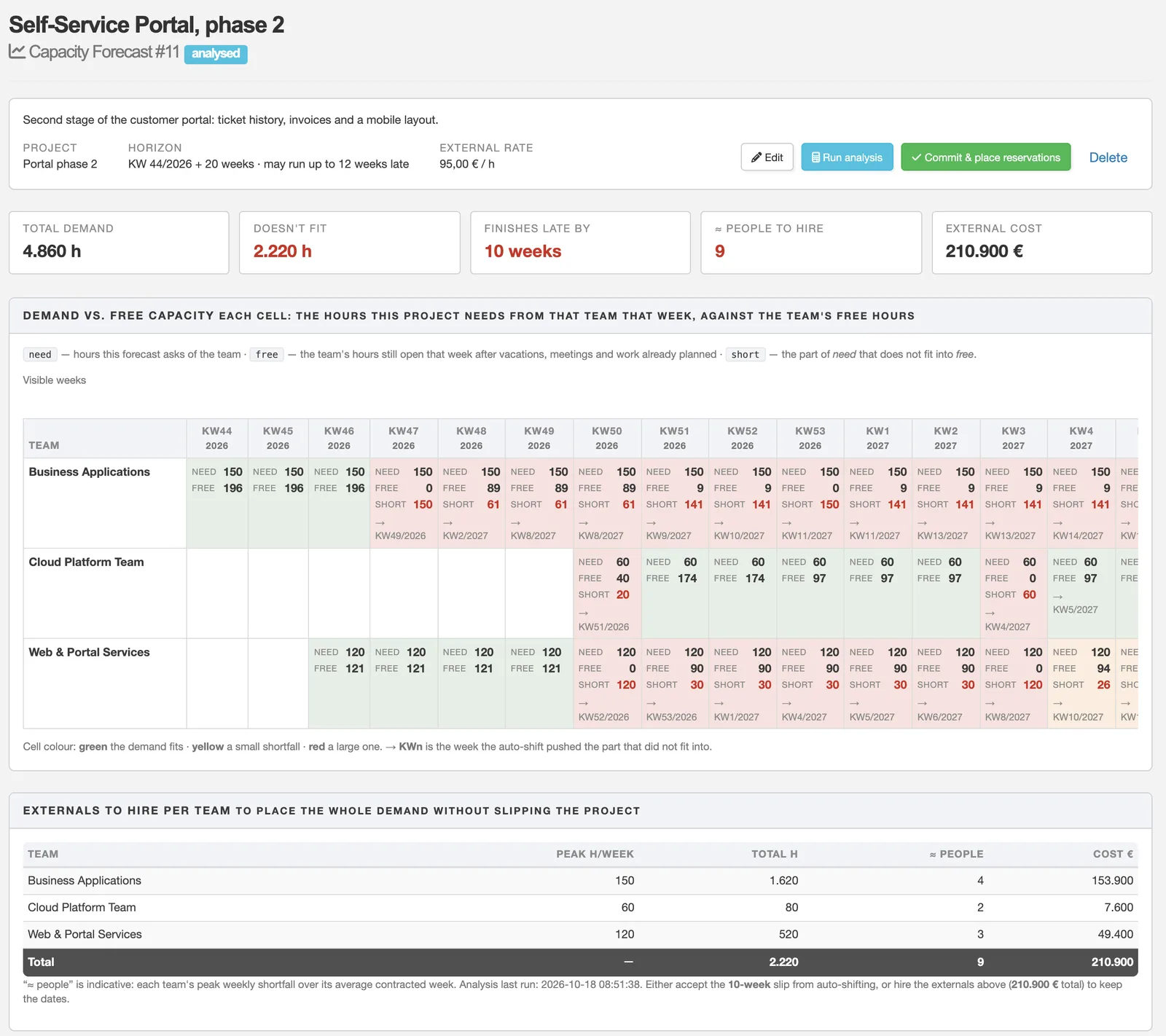
Will the teams be able to take on a project that has not started yet? A capacity forecast tests one project against the teams' free hours, reservations hold the hours once you decide, and company capacity shows where the whole organisation will run short and what closes the gap.
Capacity forecast: draw the demand per team on a timeline against each team's free capacity. The report shows what does not fit, how many weeks the project would slip if the overflow is pushed back, and how many externals it would take, with their cost.
Commit turns the demand into reservations that every team sees in its load. Edit a committed forecast and push the change with one button, or cancel it to free the hours.
Reservations: team leads see them down to the person, department leads as totals. Refit packs a team's reservations again by project priority.
Company capacity (role Capacity Planner): a heatmap of the monthly shortfall for every org unit, a company timeline and recommendations: hire for a standing gap, externals for a short spike.
Planning scenarios cost hires, externals and postponed projects against the shortfall without touching a single reservation.
Guides for this topic
Capacity guideCapacity forecast, reservations and company capacity with planning scenarios.ReadPDF
Flight level view
Releases, projects and milestones on one page. Progress is counted from the tasks that are really finished.
Group epics and projects under releases and goals.
Each milestone shows how many of its tasks are done.
Service and customers
Incidents, SLA and escalation
Customer mails and portal requests become incidents with a service level. The console shows what is waiting, what is yours and what threatens to breach.
SLAs per impact, weekday and holiday with response and escalation times.
Automatic escalation to the responsible people before a breach.
Replies to the customer go out from the ticket, the booked time stays on it.
Service requests and workflows
Turn a recurring request, such as a new laptop, an onboarding or a firewall change, into an offer with fixed steps. Requesters fill in one form, the right teams get their step in order, and other systems can take part through triggers.
An offer has a name, a list of who may start it, intake fields the requester must fill in (text with a pattern, number, date, dropdown) and steps with a team, an estimate and a predecessor.
Starting is all or nothing: one form, checked on the server, creates a master task and one task per step. Steps without a predecessor are active at once; the others wake up when the step before them is done.
A step can ask its assignee for fields, such as a ticket or serial number, that must be filled in before the step can be finished, on the Done button and through the API alike.
Requesters follow every request under My service requests: a progress bar by estimated effort and one chip per step. A step whose trigger failed is marked.
A trigger lets another system react when a step is finished: create an account, order a device, tell a chat channel. Per step you choose how it is sent.
Call before finishing: the address is called when someone clicks Done, and the step only counts as done if it answers 200 within 10 seconds. For steps that must not start without the other system's OK.
Send as webhook: a signed message (HMAC-SHA256) goes out through the scheduler and is retried after 1 minute, 5 minutes, 30 minutes, 2 hours and 12 hours. For systems that only need to be told and may be down; it never blocks the step.
The address can carry the request's and the step's fields as variables, for example hook/laptop?model=<model>&ticket=<ticket>. Only public http or https addresses are allowed, checked again at delivery, and the query string, which holds the values, is never written to logs or task history.
The trigger dashboard shows every run, the success rate, which steps are stuck on a failed trigger and why, with a button to run it again and one to send an undelivered webhook once more.
Events such as workflow.started and workflow.completed also go out as webhooks, so n8n, Make or Zapier can take part. Requests can be started and steps finished through the REST API and MCP.
Guides for this topic
Service requests and workflowsOffers, steps, triggers and the trigger dashboard.ReadPDF
WebhooksEvents, signatures, retries, Slack, Teams and n8n.ReadPDF
Services, problems and knowledge
The service catalogue knows dependencies, environments, releases and deployments. Problems bundle incidents and keep the cause. Solutions from tickets form the knowledge base.
Failures are passed on to dependent services.
Every task can be booked to a solution or service for reports.
Customers, requests and invoices
Customers, contacts and leads, a customer portal for requests and outgoing invoices as e-invoice (ZUGFeRD).
Mail to a support address creates a task or ticket.
Time booked on customer work flows into project costs and invoices.
AI
The assistant
Ask in plain words about tasks, tickets, time, capacity and documents. The answer quotes the passage and links the document. The assistant works within the rights of the person asking.
Choose the language model: in your own data centre or as a cloud service.
Questions that rank or compare people by performance are refused before any data is loaded.
Document search shows the source for every answer.
Agents and MCP
Every instance has an MCP endpoint, so AI agents work with the same rights as their user. A token is read-only by default.
Connect Claude and other MCP clients with one URL and a token.
An agent can work on an assigned task in a git branch and waits for a human to approve.
Guides for this topic
MCP guideConnect AI agents with one URL and a token.ReadPDF
Administration
Installation and operation
Resourcecloud ships as a container and runs under Docker or Kubernetes in your data centre, with tenant support. The SaaS version is hosted in Germany.
In your own data centre you provide the S3-compatible object storage and the AI services (language model).
Mail goes out through your SMTP server.
A setup wizard creates the first organisation and the admin.
Guides for this topic
Installation guideDocker, Kubernetes, storage, mail and AI.ReadPDF
First stepsSetup wizard, first login and the first team.ReadPDF
Sign-in, SSO and SCIM
Sign in with local accounts, LDAP / Active Directory, SAML or OpenID Connect, with passkeys and two-factor. SCIM keeps users and groups in sync.
Single sign-on with your identity provider.
Users are created and removed automatically with SCIM.
Guides for this topic
Single sign-on and SCIMLDAP, SAML, OpenID Connect and provisioning.ReadPDF
Audit log
Who changed what, when and from where, across all objects. Entries are sealed in a chain so tampering is detected; passwords, tokens and free text never appear in it.
Readable by the RC Admin and the Auditor role only, exportable as CSV or JSON.
Retention and pseudonymisation are set by the RC Admin.
Guides for this topic
Audit log (technical)Chain, verification and API.ReadPDF
Audit log (for administrators)Keys, storage, retention and privacy.ReadPDF
Classification
Mark tasks, documents, notes, blog articles and notices as internal, classified, secret or top secret. The level decides who can see an element on top of the sharing settings, in lists, search and the AI assistant.
Five levels: open (the default), internal (staff only, never external contractors), classified, secret and top secret.
A person is cleared up to the highest level they hold; the roles Classified, Secret and Top Secret are assigned on one admin page. You can classify up to your own clearance.
A new task starts with the level of its project, solution and service, and raising one of those raises what is inside.
A quiet select in the task editor, Quick Insert, notes, documents, blog, projects and more: nothing changes until somebody uses it.
What a person is not cleared for does not exist for them: not in lists, search, the AI assistant, the API or MCP.
Guides for this topic
ClassificationInternal, classified, secret and top secret: levels, clearance and what people see.ReadPDF
Importing from Jira
The importer reads a Jira Cloud or Data Center export with a preview, repeatable runs and an undo.
Issues, comments, worklogs, links, labels and components come across; unmatched people are never replaced by the importing admin.
A guide covers the export and the switch.
Guides for this topic
Switching from JiraExport, import, preview and undo.ReadPDF
Integrations
API, webhooks and chat tools
A REST API documented with OpenAPI, signed webhooks and channels for Slack and Microsoft Teams. n8n, Make and Zapier connect through webhooks.
Tokens are read-only or read and write.
Webhooks are signed and retried; private tasks never leave the system.
Meetings can carry a video link: Jitsi built in, Zoom, Webex, Google Meet and Teams as providers.
Guides for this topic
WebhooksEvents, signatures, retries, Slack, Teams and n8n.ReadPDF
Video conferencingJitsi, Zoom, Webex, Google Meet and Teams.ReadPDF
Processing agreement, technical and organisational measures and a deletion concept are available. A visibility model grades utilisation data, and the assistant refuses performance comparisons of people.
The works council package explains what is recorded and what is not.
The trust package collects hosting, security and data protection facts.
Guides for this topic
Works council packageWhat is recorded, visibility model, agreement.ReadPDFGerman only
Trust packageHosting, security and data protection.ReadPDFGerman only
All downloads
Every guide as a web page and as PDF. Guides marked with a language exist in that language only.
First steps Setup wizard, first login and the first team.